Quick Setup Experience with Bulk Object Field Creator (BOFC)
Have you ever postponed a Salesforce configuration project because creating hundreds of fields or updating permissions felt overwhelming?
Bulk Object Field Creator (BOFC) doesn’t require weeks of planning or complicated deployment procedures to get started. In less than half an hour, the majority of Salesforce administrators can finish installation and initial setup.
The installation and activation procedure is also explained in detail in the official BOFC documentation.
Let’s walk through the setup.
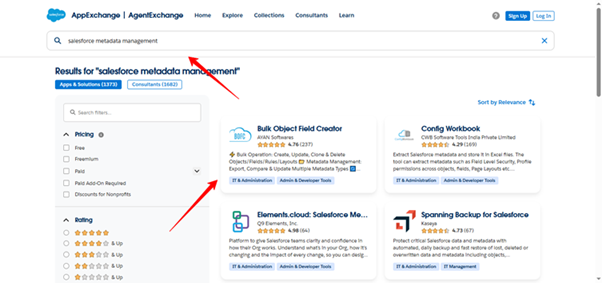
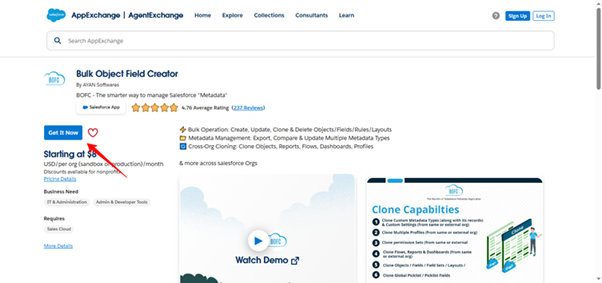
Step 1. Install from AppExchange
Download BOFC directly from the Salesforce AppExchange.
During installation:
- Choose Install for Admins Only
- Review third-party access permissions
- Confirm installation
This follows Salesforce best practices by limiting access until you explicitly assign permissions
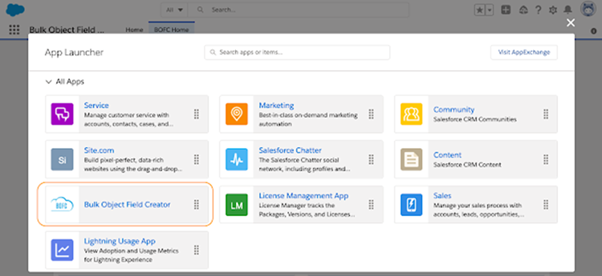
Step 2. Open BOFC from the App Launcher
After installation:
- Navigate to the App Launcher
- Search for BOFC
- Open the application
The BOFC home screen displays a structured list of available modules such as:
- Bulk Field Creation
- Clone Custom Metadata Types
- Export Field Permissions
- Clone Field Sets
- Compare Objects
- Import Picklists
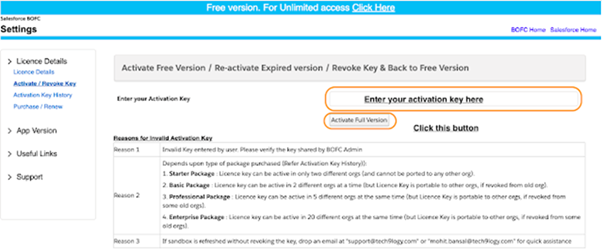
Step 3. Activate the Full Version (If Applicable)
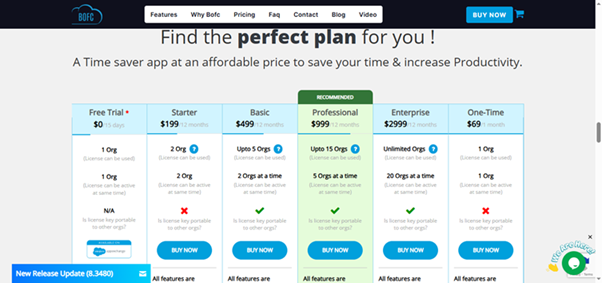
If you are using the trial version:
- Navigate to the Activation tab inside BOFC
- Enter your activation key (provided after license purchase)
- Click Activate
Once activated, all bulk limits are removed.
Step 4. Execute Your First Bulk Operation
Now BOFC is ready to use.
Example: Bulk Field Creation
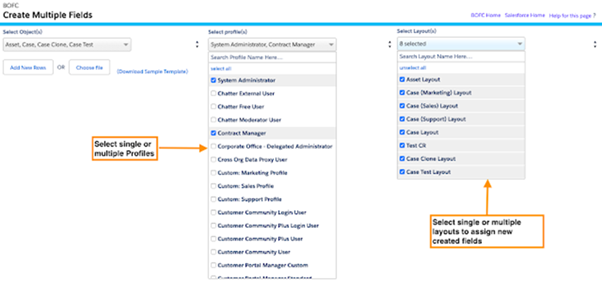
- Select object
- Define fields via structured input
- Review configuration
- Execute
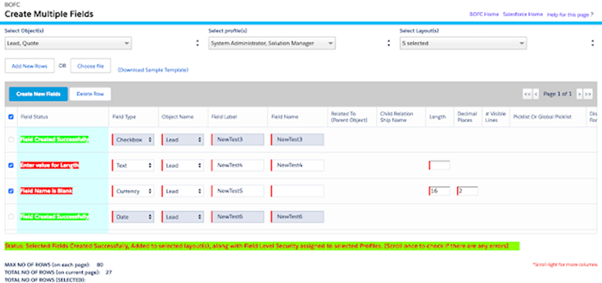
Within minutes, dozens or hundreds of fields can be created consistently.
Step 5 . Validate Changes
After execution:
- Confirm fields are created
- Verify field-level security
- Check page layouts (if applicable)
- Review object structure
BOFC operations reflect immediately in Salesforce metadata.