How to Set Up Salesforce DevOps Center Step by Step

June 10, 2026
56 Views
How to Set Up Salesforce DevOps Center Step by Step

In the previous blog, we understood why DevOps Center is preferred over Change Sets.
Now, in this part, we will focus on how to set up DevOps Center step by step.

By the end of this guide, you’ll have a fully working DevOps Center setup with:

  • GitHub integration
  • Pipeline configuration
  • Connected environments
Prerequisites

Before setting up DevOps Center, make sure you have:

  • A Salesforce Production / Developer Org (DevOps Center installed here)
  • At least one Sandbox org
  • A GitHub account
  • Proper permissions (System Administrator recommended)
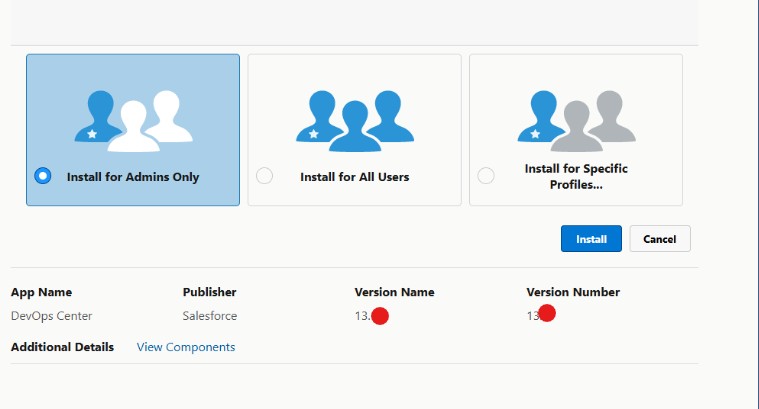
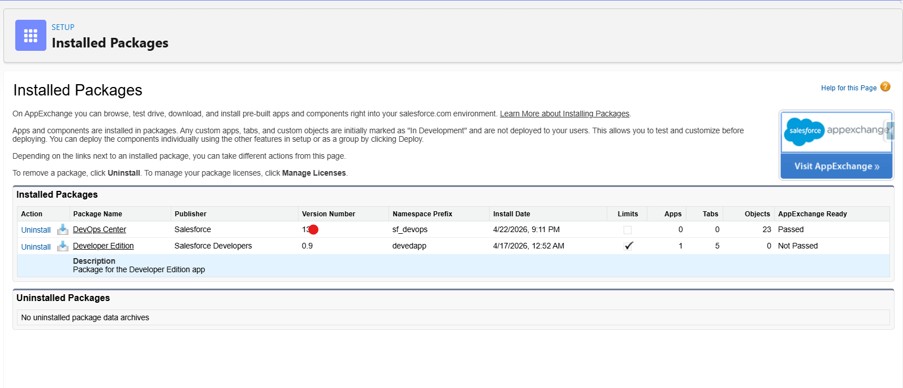
Step 1: Install DevOps Center

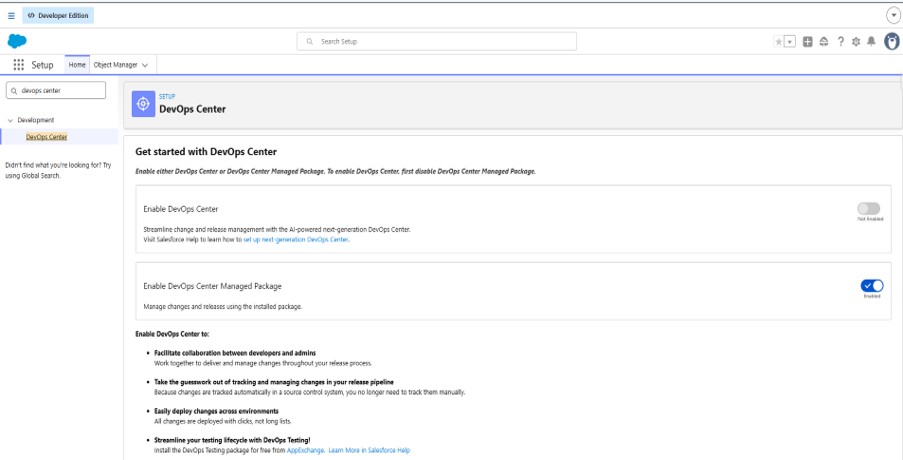
  • Go to Salesforce Setup
  • Search for DevOps Center
  • Enable 02nd option (Enable DevOps Center Managed Package)
  • Install Package

Important:

Install it in your Production or Developer Org (not Sandbox). DevOps Center cannot be installed in Sandbox
Picture1
Picture2
Picture3

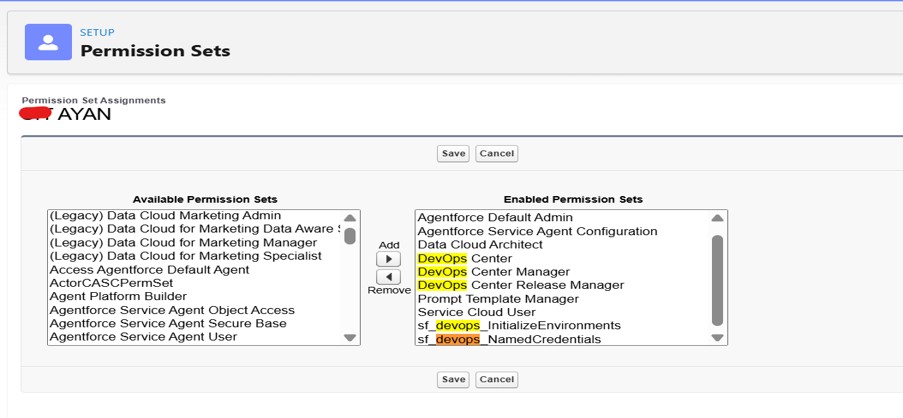
Step 2: Assign DevOps Center Permission to User

After installing DevOps Center, the next crucial step is to grant the required permissions to users. Without proper access, users won’t be able to open or use DevOps Center.

Steps to Assign Permission:
  1. Go to Setup
  2. Search for Users
  3. Open the specific User record
  4. Scroll to Permission Set Assignments
  5. Click Edit Assignments
  6. Select DevOps Center permission set
  7. Click Add → Save
Common Issue:

If permissions are not assigned:

  • DevOps Center will not appear in the App Launcher
  • Or users may face access errors while opening it

Picture4

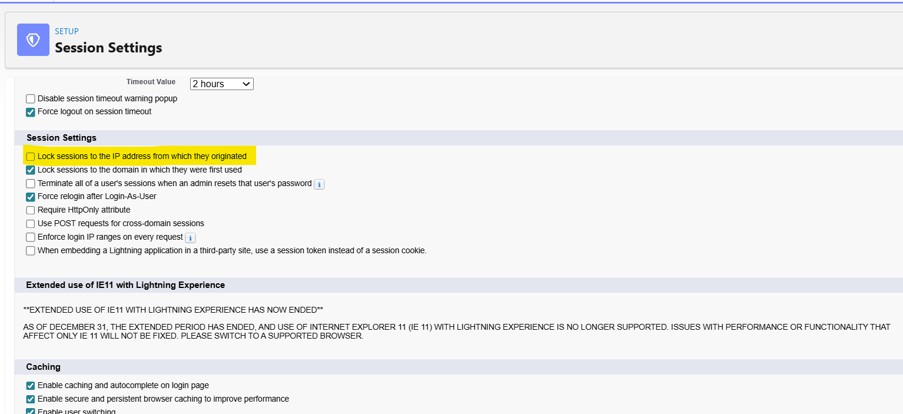
Step 3: Update Session Settings (Important)

To ensure DevOps Center works properly, you need to disable a specific security setting in Session Settings. This setting can block API access required by DevOps Center.

Steps to Update Session Settings:
  1. Go to Setup
  2. Search for Session Settings
  3. Open Session Settings
  4. Find the option:
    “Lock sessions to the IP address from which they originated”
  5. Uncheck this option
  6. Click Save
Important:
  • This setting can prevent proper communication between Salesforce and GitHub
  • If not disabled, you may face issues like:
    • DevOps Center not loading properly
    • Authentication or connection failures
Common Mistake:

Many developers skip this step, and later face issues where:

  • GitHub connection fails
  • Work items don’t sync properly

Picture5

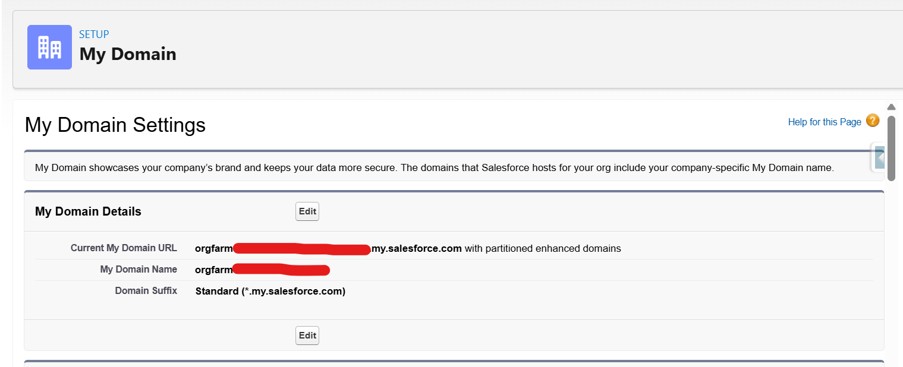
Step 4: Store My Domain Credentials

  1. Go to Setup
  2. Search for My Domain
  3. Store the Domain URL & Domain Name (Required for External Client App)

Picture6

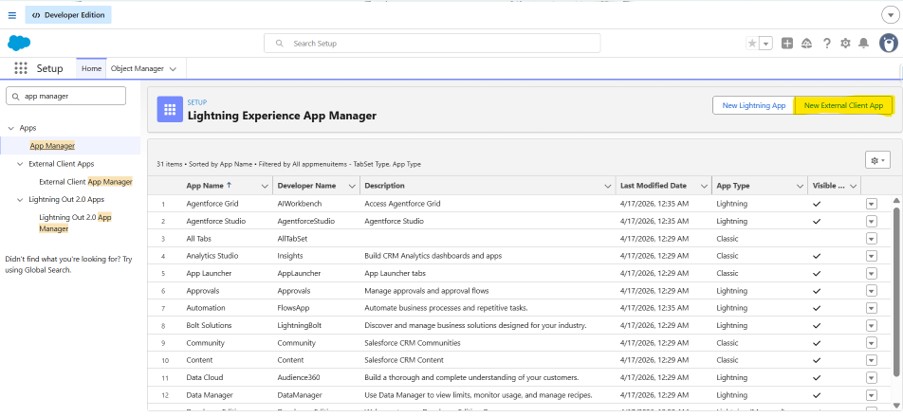
Step 5: Create External Client App

DevOps Center now uses an External Client App (instead of a Connected App) for secure authentication and API communication.

Steps to Create External Client App:
  1. Go to Setup
  2. Search for App Manager
  3. Click New External Client App
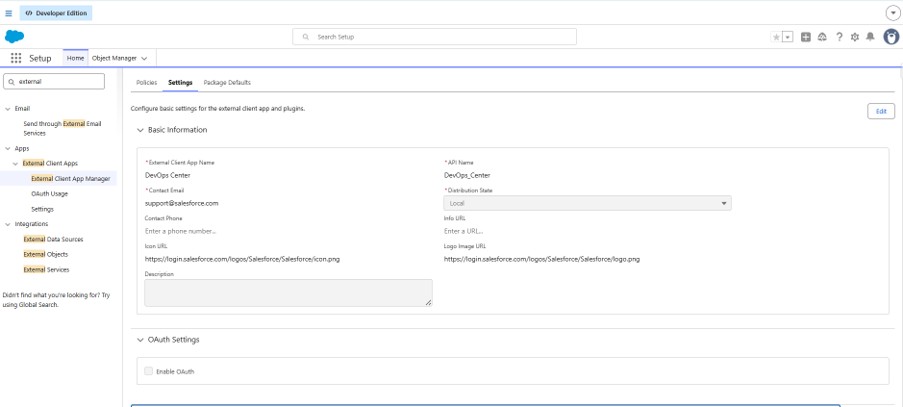
  4. Fill in basic Information + Enable SAML and fill details
  5. Save the app
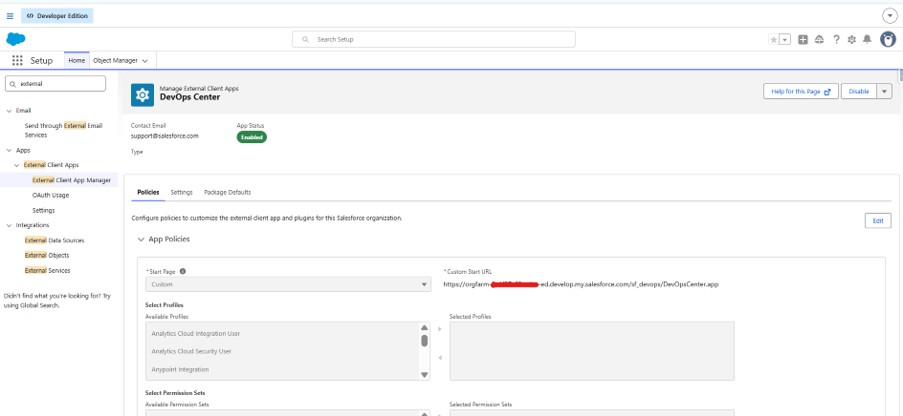
  6. Setup 🡪 External Client App Manager 🡪 Select and Edit Policies 🡪 Start Page 🡪
    Select Custom – https:// Current My Domain URL /sf_devops/DevOpsCenter.app
  7. Save the app
Important:
  • This step is mandatory for DevOps Center to function properly
  • Without External Client App:
    • DevOps Center cannot connect to required APIs
    • Authentication with GitHub/Salesforce will fail

Picture7
Picture8
Picture9
Picture10
Picture11

Step 6: Create External Client App

After completing all configurations, the final step is to verify that everything is working correctly.

Steps to Test:
  • Go to App Launcher (⚙️)
  • Search for DevOps Center
  • Click to open the app
Expected Behavior:
  • DevOps Center should open without any errors
  • You should see options like:
    • Projects
    • Pipelines
    • Work Items
    • Environments

Final Result:

Once everything is set up, you’re ready to:

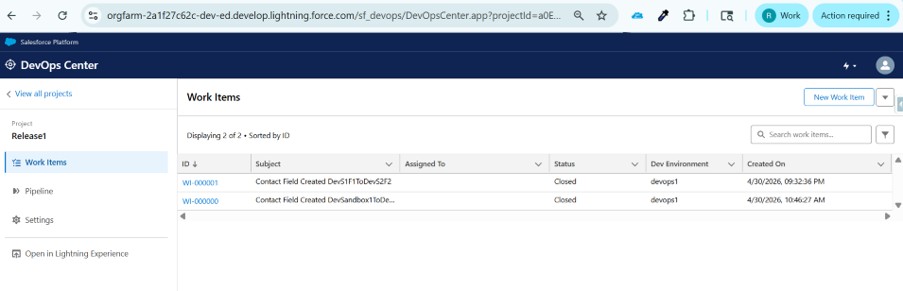
  • Create Work Items
  • Track changes across environments
  • Manage deployments using a Git-based workflow

Picture12

Also Read

Don’t forget to check out: Master Salesforce Flows

Conclusion

Putting in DevOps center might experience a chunk designated initially, however every step plays an crucial function in building a reliable and scalable development manner. Once everything is configured efficiently, from permissions and consultation settings to GitHub integration and pipeline setup, you get a complete give up-to-end DevOps workflow within Salesforce.

With DevOps middle, teams can circulate away from guide deployments and adopt an extra structured, Git-based total technique. This not handiest improves collaboration between builders and admins but also ensures higher tracking, model manipulation, and deployment accuracy.

In the end, investing time in proper setup can pay off by means of lowering mistakes, increasing efficiency, and making the general launch control method smoother and extra predictable.

👉 Within the next blog, we will consciousness on creating a DevOps assignment, connecting a GitHub repository, and information launch environments, where you may take the first step into the actual improvement workflow in DevOps center.

Written by

user

Rohit Mehta

A passionate Salesforce Developer and 3x Salesforce Certified professional specializing in building scalable CRM solutions. Proficient in Apex, Lightning Web Components (LWC), Triggers, Flows, and integrations, with a strong focus on delivering efficient, user-friendly applications. Experienced in translating business requirements into robust technical solutions while optimizing system performance. Skilled in end-to-end development, from design and implementation to deployment across Salesforce platforms.

Contributor of the month
contributor
Rohit Mehta

3x Certified Salesforce Developer || Apex || LWC

Get the latest tips, news, updates, advice, inspiration, and more….

...
Boost Your Brand's Visibility

Want to promote your products/services in front of more customers?

...