Let me paint a picture you might recognise.
Your manager walks over and asks you to pull all the contracts from 50 closed Opportunity records. Or your compliance team needs every file on a set of Accounts watermarked with ‘CONFIDENTIAL’ before they go out to a third party. Or an integration has dumped 300 files into your org with names like output_v3_FINAL_useThis_FINAL2.pdf and someone needs them renamed before end of day.
You open Salesforce. You look at the Files section. And the platform that can do almost anything—gives you nothing.
No bulk actions. No rename. No move. No watermark. Just a list of files, a download button that works one file at a time, and a quiet sense that you’re about to spend the next three hours doing something that should take five minutes.
The Part of Salesforce Nobody Builds Blog Posts About
There is a huge ecosystem of tools, tips, and community content built around Salesforce data—flows, validation rules, permission sets, SOQL, metadata management. Tools like Salesforce Inspector Reloaded, Data Loader, and Workbench have made admin work genuinely faster and smarter. The data side of the platform has never been better supported.
Files, though? Files have always been the quiet corner nobody quite gets around to fixing.
The native Salesforce Files experience was designed for end users—upload a document, view it on a record, share it with a colleague. Simple, and for individual use, it works fine. But the moment an admin needs to do anything at scale—anything that involves more than one file, or more than one record, or any manipulation beyond a basic download—the cracks show immediately.
The 8 File Management Pain Points Every Salesforce Admin Knows
Here is what real Salesforce admins are dealing with, day in and day out—and the workarounds they’ve had to build just to get the job done.
1. Downloading Multiple Files is Still a One-at-a-Time Job
Go to any record with 15 files attached. Try to download all of them at once. You can’t. Salesforce downloads one file per click—which means 15 clicks, 15 browser prompts, and 15 individual files scattered across your Downloads folder. For admins running compliance exports or weekly reporting routines, this becomes genuinely painful fast.
The workaround most teams land on: write a custom Apex script or set up a Data Loader job. Both work. Both require developer involvement every time something changes.
2. Cleaning Up File Storage Means Writing SOQL Before You Even Start
Salesforce storage is expensive, and it fills up quietly. Duplicate uploads, integration outputs, test files, outdated versions—they accumulate until someone notices the monthly bill. But there is no native interface to filter files by age, record type, or size and delete them in bulk. To do a proper cleanup you need to write SOQL, export to CSV, cross-reference ContentDocumentLinks, and run a Data Loader delete job. A task that should take minutes becomes a half-day operation.
3. Moving Files Between Records Requires Manipulating Backend Objects
A file landed on the wrong Account. You need to copy a proposal template across 20 Opportunities. Sounds simple—except Salesforce has no native Move or Copy functionality for files. To do it, you’re manipulating ContentDocumentLink objects directly: query the link, delete it from the source record, create a new one on the destination. Three separate Data Loader operations for what should be a drag-and-drop.
4. There is No Bulk Rename—So You Lose Your Metadata Every Time
When integrations push files into Salesforce with auto-generated names, or when a vendor uploads a batch using their own internal naming convention, admins need to rename them to match the org’s standard. Salesforce lets you rename files one at a time. That’s it. The workaround—download, rename locally, delete originals, re-upload—works, but wipes your upload dates, version history, and any tied metadata in the process. For audit-sensitive orgs, that trade-off is often unacceptable.
5. Previewing and Comparing Files Means Constant Tab-Switching
Auditing 20 files means 20 new tabs or modals. There’s no in-place preview that stays inside your workflow. And for comparing two document versions—two drafts of a contract, two revisions of an SLA—Salesforce offers nothing at all. The standard process: download both, open in Google Drive or Acrobat, compare manually, come back to Salesforce. For legal and compliance teams this happens multiple times a day.
6. Watermarking Takes 7 Steps and Lives Entirely Outside Salesforce
Confidential reports, draft proposals, NDAs with distribution controls—watermarking is a genuine recurring need. Salesforce has zero native support for it. The current process: download the file, open it in Adobe Acrobat or a browser tool, apply the watermark, save, re-upload, delete the original, verify the link. Seven steps. Every time. For every file.
7. PDF Splitting and Merging Happen Somewhere Else—Not in Salesforce
Legal teams split large case PDFs into sections. Finance teams merge invoices into single client packets. Procurement teams combine supplier documents before uploading them. All of this happens outside Salesforce—in Acrobat, in browser PDF tools, on local desktops—followed by a manual re-upload that strips version history and metadata. A 30-second task becomes a 15-minute round-trip.
8. Syncing Files to External Storage Means Building a Custom Integration
Archiving older files to Google Drive, AWS S3, or OneDrive is the right call for controlling Salesforce storage costs. But there’s no native sync or archival workflow. Building one means custom Apex calling external APIs, a MuleSoft integration, or a Zapier workflow—none of which are admin-level tasks, and all of which need ongoing maintenance whenever authentication changes or API versions update.
The Pattern Behind All of It
Every single workaround above follows the same pattern:
- Leave Salesforce
- Use a third-party tool
- Come back to Salesforce
- Re-upload and lose your metadata
- Or: raise a ticket, wait for a developer, and repeat next month
The data side of admin work has genuinely excellent tooling that keeps you inside the platform. The files side pushes you out of it every single time.
What We Built – and Why
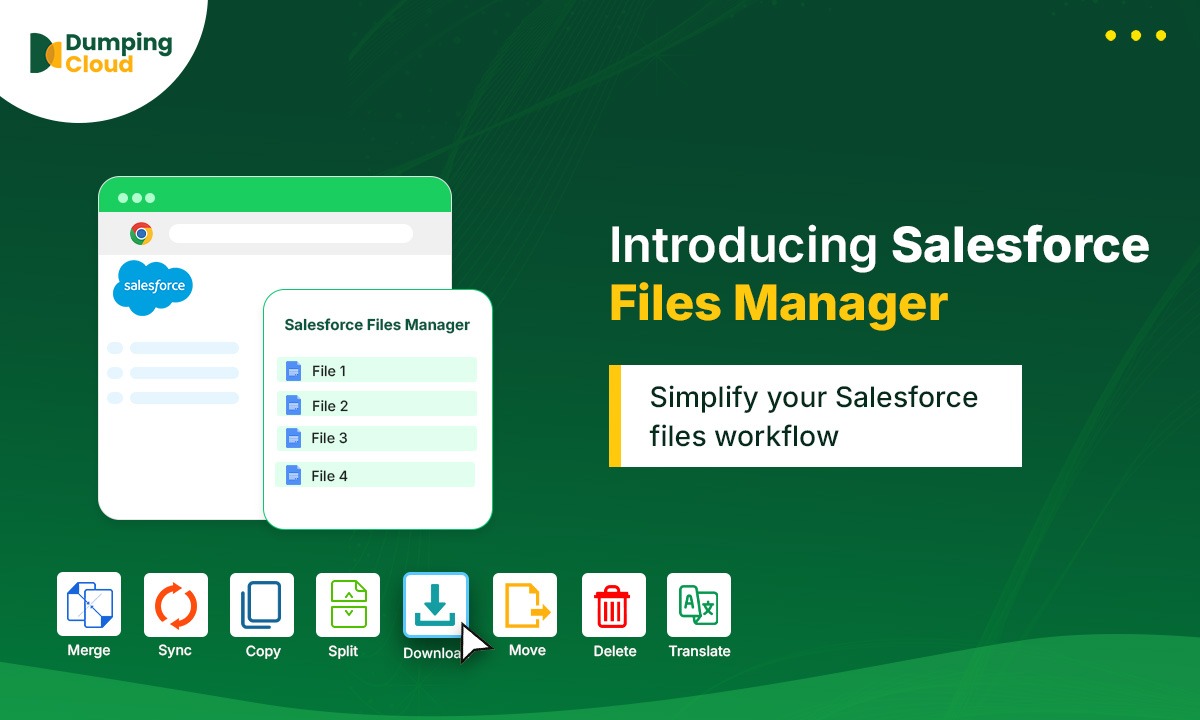
We built Salesforce Files Manager – Google Chrome Extension because we kept running into these exact problems ourselves—and we couldn’t find a single tool that solved them together.
The idea was simple: what if you had the equivalent of Salesforce Inspector Reloaded—but for files? A powerful, in-browser layer that sits on top of your existing Salesforce session, understands your records and your files, and lets you take real action without leaving the page.
No separate platform. No login setup. No developer required. Just install it, open any Salesforce record, and everything you’ve been doing the long way—you can now do in seconds.
Here is what it handles:
- No Login Required: Automatically detects your active Salesforce session. Open it and go.
- Bulk Download & Delete: Select multiple files from any record and act on them all at once.
- Move & Copy Between Records: Transfer files across your Org without touching ContentDocumentLinks.
- Bulk Rename with Patterns: Apply naming conventions across hundreds of files in one action.
- In-Window Preview: Preview images and PDFs inside the extension, no new tab needed.
- Side-by-Side Compare: Compare any number of documents next to each other without leaving Salesforce.
- Watermarking: Apply text or image watermarks to any file in a matter of clicks.
- PDF Split & Merge: Break large documents apart or combine files directly from the record page.
- eSign Integration: Send documents for digital signature with a single click.
- External Cloud Sync: Move files to Google Drive, AWS S3, or OneDrive to cut Salesforce storage costs.
Ready to Stop Working Around Salesforce Files?
Salesforce Files Manager Google Chrome Extension installs in under 60 seconds. Open any Salesforce record, and the difference is immediate—no login setup, no configuration, no developer needed.
Install Free on Chrome Web Store → Salesforce Files Manager