How to Enable an Agentforce Chatbot on Salesforce Experience Cloud Site

June 29, 2026
11 Views
How to Enable an Agentforce Chatbot on Salesforce Experience Cloud Site
Summarize this blog post with:

Have you ever visited a customer portal and struggled to find the information you needed? Most users don’t want to search through multiple pages or submit support tickets for simple questions. They want immediate answers.

This is where Agentforce becomes valuable. By connecting an Agentforce Service Agent to an Experience Cloud site, organizations can offer conversational support directly within the portal using Embedded Messaging and web-based chat deployment. Instead of forcing users to navigate multiple pages, the chatbot can answer questions, guide users through actions, and route conversations when escalation is needed.
Why Use Agentforce with Experience Cloud?

Experience Cloud portals are commonly used for support, partner collaboration, account management, and self-service experiences. Adding Agentforce introduces a natural-language support layer that helps users interact with the portal more efficiently.

Key benefits include:

  • Improved customer experience, because users can ask questions directly instead of searching through pages.
  • Reduced support costs, because common requests can be handled automatically.
  • Faster resolution times, because Agentforce can guide users to the right content or action.
  • Better engagement, because conversational support often feels easier than navigating menus and forms.

Real-World Scenario

Imagine an automobile service company that uses Experience Cloud as a customer self-service portal. Customers log in to book service appointments, check repair status, download invoices, review service history, and raise complaints.

Without a chatbot, support teams may receive the same questions every day, such as:

  • When will my vehicle be ready?
  • Can I reschedule my service appointment?
  • What is the status of my complaint?
  • How do I download my invoice?

With Agentforce embedded in the Experience Cloud site, the company can answer these repetitive questions instantly, reduce support workload, and improve self-service adoption.

Solution Architecture

A typical implementation follows this flow:

Customer
  • Experience Cloud Site
  • Embedded Messaging Component
  • Messaging Channel
  • Agentforce Agent
  • Topics and Actions
  • Salesforce Data, Flow, or Apex
  • Response returned to user

This architecture works well because the Experience Cloud site provides the user interface, the messaging layer carries the conversation, and Agentforce handles the AI-driven support experience.

Prerequisites

Before starting the implementation, confirm that the org is prepared correctly. Salesforce states that Einstein Generative AI and Agentforce should be enabled before launching agents, and the right access and permissions should be in place.Make sure the following prerequisites are covered:

  • Salesforce org with Agentforce enabled.
  • Einstein Generative AI enabled.
  • Experience Cloud enabled.
  • Appropriate permissions for admins and supporting users.
  • Business use cases clearly identified.
  • Flows, knowledge articles, or actions ready if the chatbot must perform business operations.

Step 1: Create and Activate Your Agentforce Agent

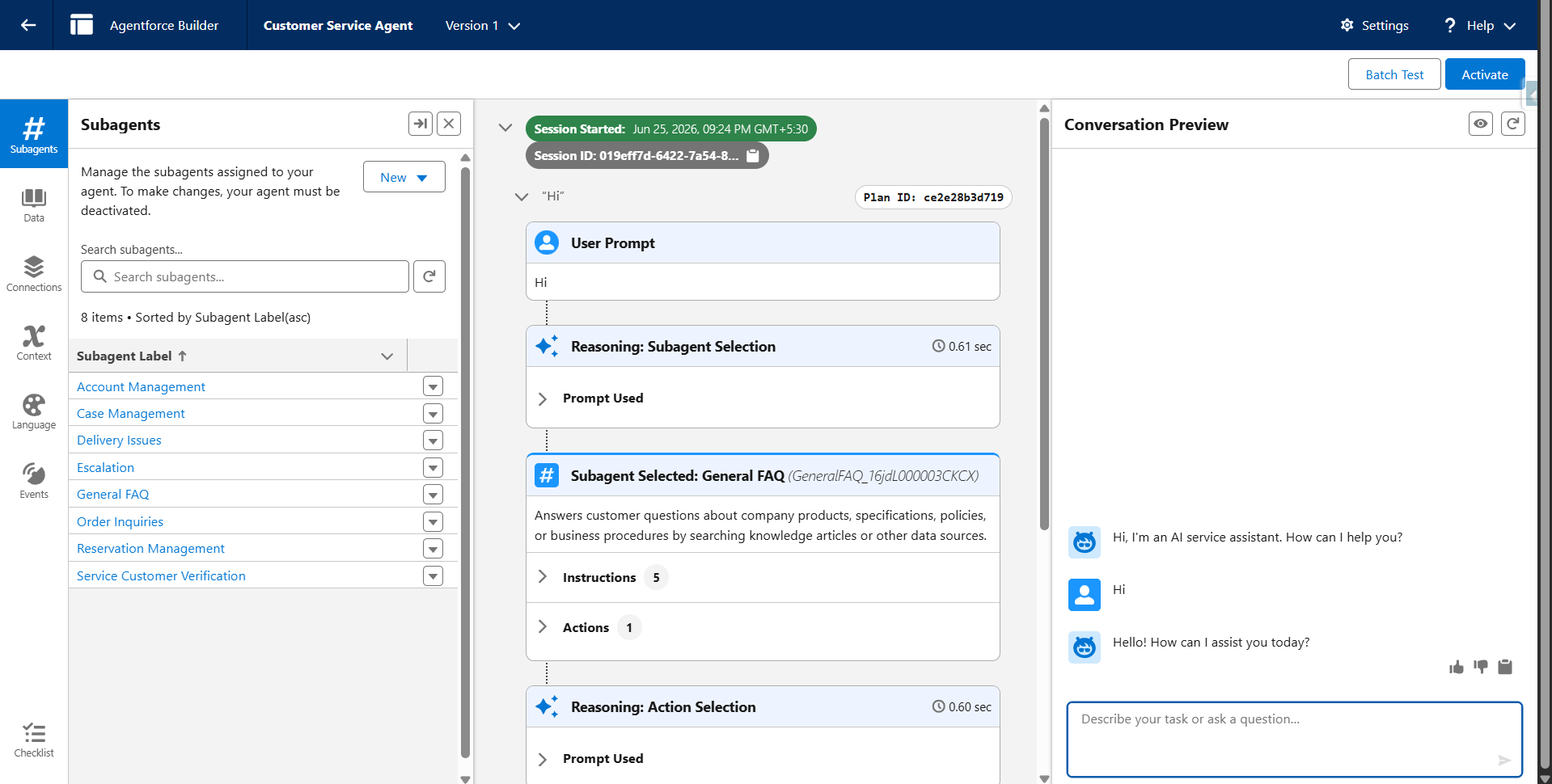
The first step is to build the AI agent that will power the chatbot. Salesforce says agents should be created in Agentforce, configured with business instructions, tested, and activated before they are deployed to an external experience.

Screenshot 2026 06 25 212518

Enable required AI setup

Navigate to:

  • Setup → Einstein Generative AI
  • Setup → Agentforce

Enable both features if they are not already active in the org.

Create the service agent

Open:
  • App Launcher → Agentforce Studio
Then:
  • Click New Agent.
  • Select Service Agent or the relevant Agentforce service template in your org.
  • Provide a clear agent name and description.

Configure the agent

Define the agent’s behavior using instructions, welcome text, fallback messaging, and business actions.A strong instruction example would tell the agent to help users check appointment status, view service history, raise support requests, and answer portal-related questions.Recommended configuration includes:

  • Agent instructions.
  • Welcome message.
  • Error or fallback response.
  • Knowledge articles.
  • Flow actions.
  • Apex or data actions, if the use case requires custom operations.

Test and activate

Use the preview or testing interface in Agentforce Studio to validate expected questions and responses before going live. After testing, activate the agent version because only active agents can be used in the deployment flow.

Step 2: Create Routing for Inbound Conversations

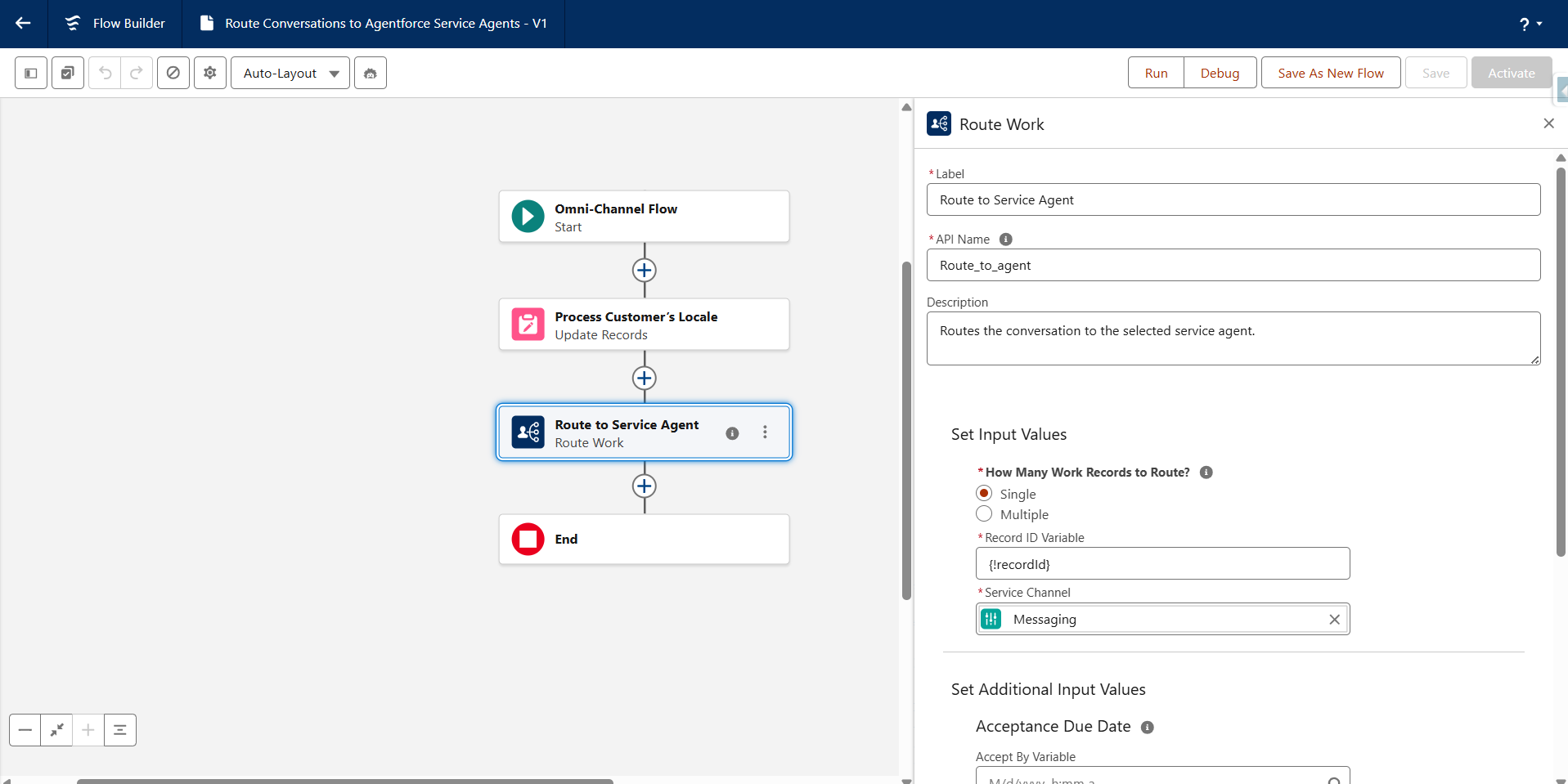
The next step is routing. In practical implementations, routing helps determine whether the conversation stays with the chatbot, triggers a flow, or gets escalated to a human support queue when needed.

Navigate to your flow and messaging routing setup area in Salesforce and create the logic for inbound conversations. This part is especially important if the business wants the chatbot to hand off complex or sensitive issues to human agents.

Screenshot 2026 06 25 212654

Common routing scenarios

  • FAQ requests can stay with Agentforce.
  • Appointment or service-related requests can launch a Salesforce Flow.
  • Complex service issues can move to a support queue.
  • Escalations can be routed to live service agents through the service routing design.

Why this step matters

Without routing, the chatbot may answer only simple questions and fail to support a real service process. A good routing design makes the chatbot part of the service operation, not just a standalone assistant.

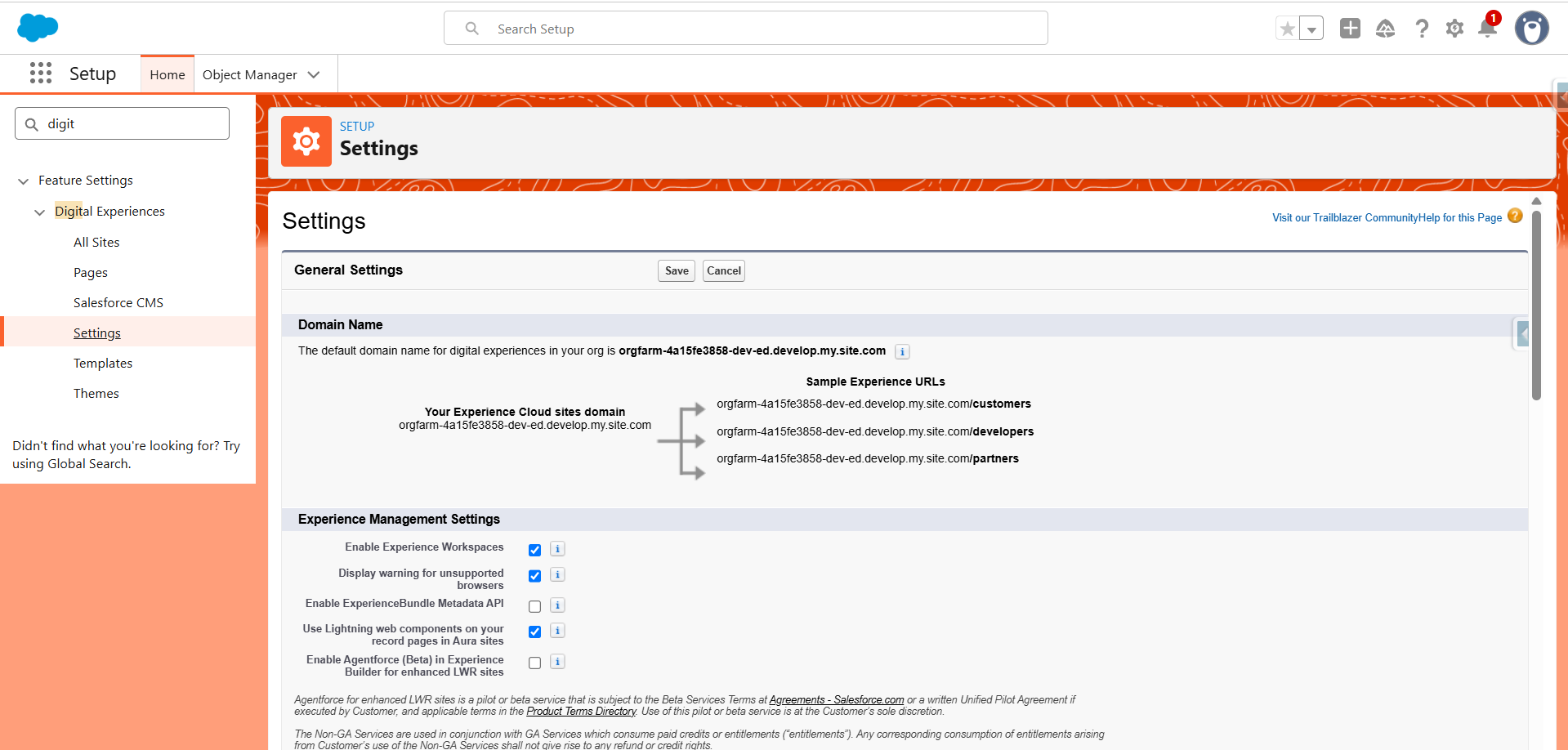
Step 3: Enable Digital Experiences and Create an Experience Cloud Site

Now create the site where the chatbot will be exposed. Salesforce says the site must exist in Experience Cloud before the embedded messaging component can be added.

Enable Digital Experiences

Navigate to:

  • Setup → Digital Experiences → Settings

Enable Digital Experiences if it is not already enabled, and configure the Salesforce domain if prompted during setup.

Screenshot 2026 06 25 212746

Create the site

Navigate to:

  • Setup → All Sites

Then:

  • Click New.
  • Choose a supported template such as Customer Service, Help Center, Customer Account Portal, Partner Central, Build Your Own, or an LWR site template.
  • Complete the setup wizard.

After the site is created, open Experience Builder.

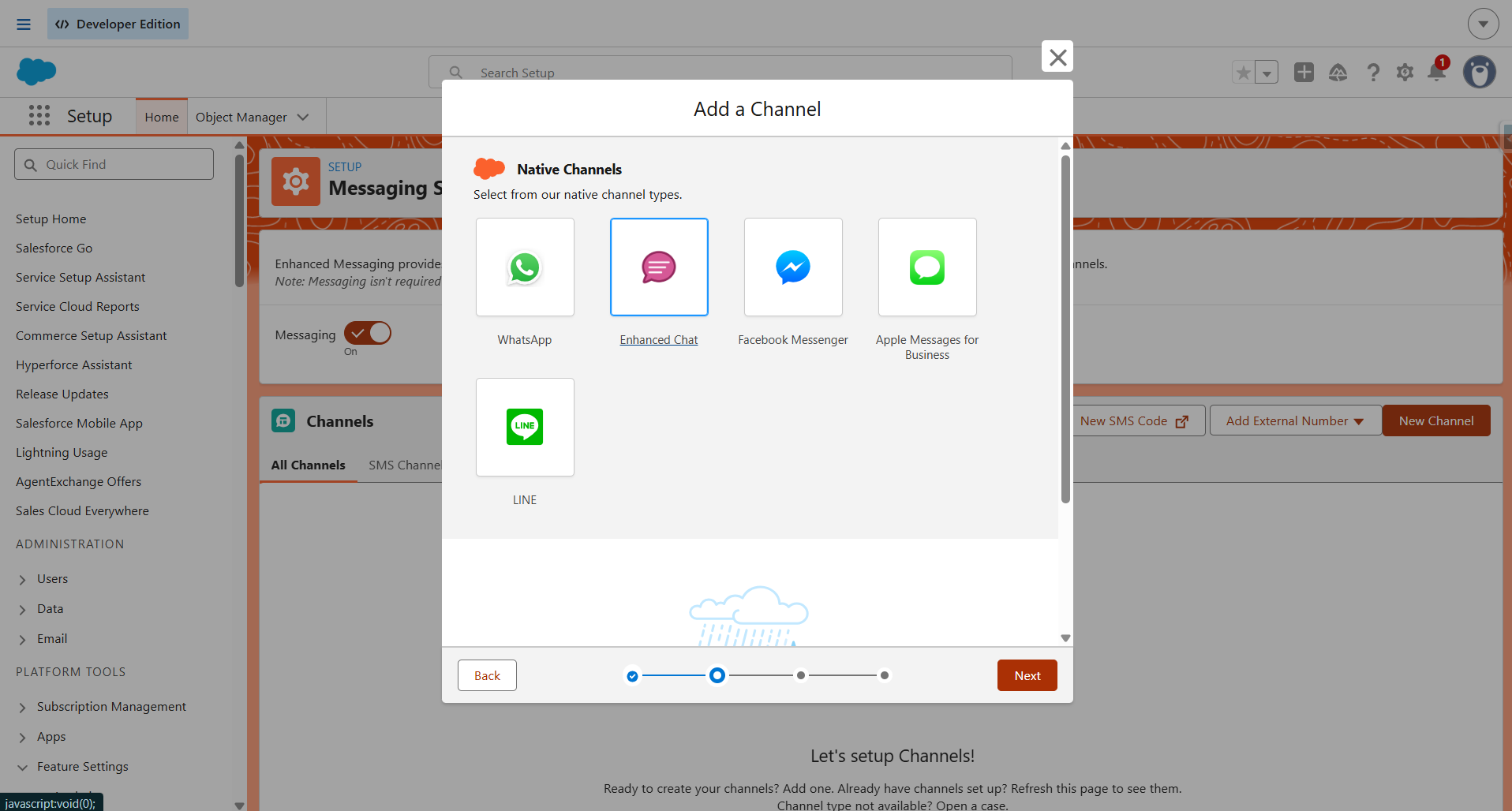
Step 4: Create the Messaging Channel

The messaging channel connects the Experience Cloud site to the Agentforce support experience. In Salesforce’s current messaging-based setup pattern, the messaging channel should be created before the web deployment that surfaces the chatbot on the site.

Screenshot 2026 06 25 213029

Create the channel

Navigate to the messaging setup area in Salesforce and create a new web messaging channel. Associate it with the Agentforce agent and the routing logic prepared earlier.

Suggested channel configuration includes:

  • Channel name, such as Customer Support Chat.
  • Channel type for web messaging.
  • Associated Agentforce agent.
  • Routing or escalation configuration.

Why this step matters

The messaging channel acts as the bridge between the Experience Cloud site, the deployment layer, and the AI agent. Without it, the chatbot cannot communicate with portal users through the web interface.

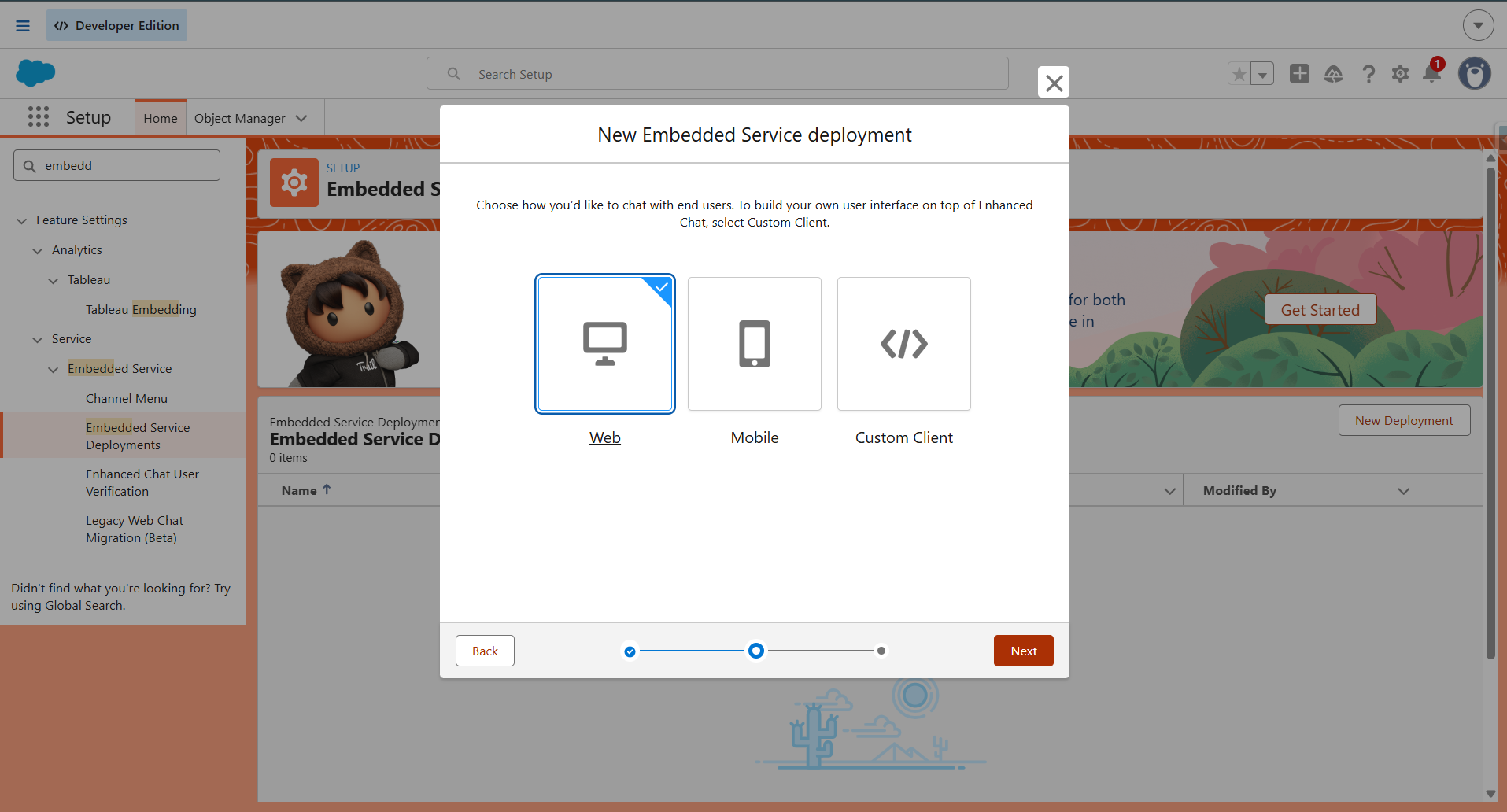
Step 5: Create the Embedded Service Deployment

Once the channel is ready, create the deployment that will actually be referenced inside Experience Builder. Salesforce says to create an embedded chat deployment for each chat window and connect it to the correct configuration.

Screenshot 2026 06 25 213132

Create the deployment

Navigate to:

  • Setup → Embedded Service Deployments, or the corresponding Enhanced Web Chat deployment area in your org.

Then:

  • Click New Deployment.
  • Select the messaging channel created in Step 4.
  • Configure the deployment settings and save the record.

Record the key values

You should capture the following values for the Experience Builder step:

  • Embedded Web Deployment.
  • Enhanced Service URL.
  • Site Endpoint.

These settings are required because the Embedded Messaging component needs them to connect the site to the deployed chatbot experience.

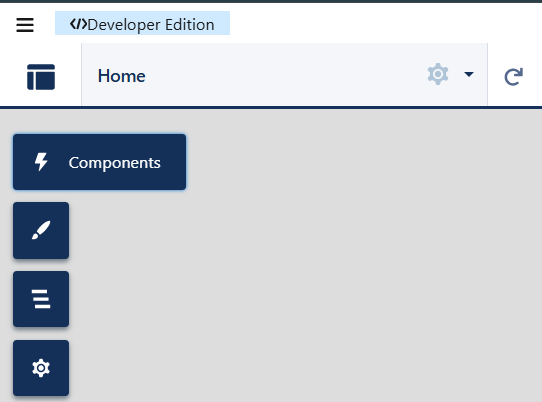
Step 6: Add the Chatbot to Experience Cloud

At this stage, the chatbot is ready to be placed on the portal. Salesforce says to use the Embedded Messaging component in Experience Builder and place it in a visible site region, commonly the footer.

Screenshot 2026 06 25 213326

Add the component

Navigate to:

  • Channel name, such as Customer Support Chat.

Then:

  • Open the Components panel.
  • Drag Embedded Messaging onto the site template.
  • Place it in the footer or another visible area recommended by the site design.

Configure component properties

In the component properties, configure:

  • Embedded Web Deployment.
  • Enhanced Service URL.
  • Site Endpoint.
  • Button visibility settings.

For customer support sites, many teams prefer Always Visible so users can immediately notice the chat entry point.

Step 7: Configure Security and CORS

This is one of the most frequently missed steps. Salesforce says the site domain and deployment-related security settings must be configured correctly, especially when enhanced domains or trusted-site behavior are involved.

Configure CORS and trusted access

Navigate to:

  • Setup → CORS

Add the Experience Cloud site domain so the deployment can operate correctly in the browser context. If the org uses older bot or script-based setup patterns, also review trusted-site and security settings in Experience Builder.

Review access controls

Also verify:

  • Guest user access.
  • Object permissions.
  • Field-level security.
  • Sharing rules and data visibility.

Security should always be designed carefully so the chatbot does not expose data that users are not meant to access.

Step 8: Publish and Test the Experience

The final step is to publish and validate the complete experience. Salesforce says the site must be published for the live chat experience to appear correctly on the public or authenticated site.

Publish the site

Inside Experience Builder:

  • Click Publish.

Perform end-to-end testing

Verify the following on the live site:

  • The chat button is visible.
  • The welcome message displays correctly
  • The agent answers common questions accurately.
  • Flows or actions execute successfully.
  • Escalation works when a human handoff is needed.
  • Data access respects the user’s permissions.

Common Challenges and Fixes

A few issues appear regularly during setup. In many cases, the chatbot is not visible because the deployment is incorrect, the site was not published, or the required domain security entry is missing.

Challenge Likely Fix
Chatbot not visible Verify the deployment, component setup, and site publication status.
Agent cannot access records Review permissions, sharing, and field visibility.
Flow action fails Validate flow inputs and access configuration.
Escalation not working Review routing logic and channel setup.
Incorrect responses Improve the agent instructions, grounding, and business actions.

Best Practices

A successful implementation usually starts with a narrow use case and expands gradually after testing. This makes it easier to fine-tune the agent and measure business value before scaling up.

Useful best practices include:

  • Keep agent instructions specific and business-focused.
  • Use Salesforce Flows where possible because they are easier to maintain than custom code for many admin-driven processes.
  • Break topics into smaller support areas such as billing, appointments, cases, or FAQs.
  • Review conversations regularly to improve accuracy and identify gaps.
  • Always provide a clear path to human support for complex issues.

Lessons Learned from Real Implementations

After implementing Agentforce on Experience Cloud projects, one common observation is that the biggest challenge isn’t the technical setup—it’s defining clear business use cases.

Organizations that start with focused use cases such as FAQ support, appointment booking, or case status tracking generally see faster adoption and better user satisfaction than those attempting to automate everything from day one.

Conclusion

Agentforce and Experience Cloud together provide a strong foundation for modern self-service support experiences inside Salesforce. When an organization creates and activates the agent first, prepares routing, sets up the site, creates the messaging channel and deployment, adds Embedded Messaging, configures security, and then publishes and tests the solution, the implementation becomes much smoother and more reliable.

More importantly, this setup transforms the Experience Cloud portal into an intelligent support channel rather than a static information site. With the right instructions, actions, and security controls in place, Agentforce can help organizations improve response speed, reduce repetitive support effort, and offer a more natural digital experience for users.

Key Takeaways

  • Enable Einstein Generative AI and Agentforce before building the chatbot.
  • Create and activate the Agentforce Service Agent first.
  • Set up routing early so escalation and support logic are ready.
  • Create the Experience Cloud site before embedding the chatbot.
  • Create the messaging channel before the deployment.
  • Use Embedded Messaging in Experience Builder to surface the chatbot on the site.
  • Configure CORS and security carefully.
  • Publish and test the full journey before go-live.
Also Read

How useful was this post?

Click on a star to rate it!

Average rating 0 / 5. Vote count: 0

No votes so far! Be the first to rate this post.

Written by

Akash P T

Salesforce Developer with 1.8+ years of experience in Apex, LWC, Flows, REST API integrations and Agentforce. Passionate about automation, scalable CRM solutions, and sharing Salesforce knowledge with the community.

Get the latest tips, news, updates, advice, inspiration, and more….

Contributor of the month
contributor
Rohit Mehta

3x Certified Salesforce Developer || Apex || LWC

...
Categories
...
Boost Your Brand's Visibility

Want to promote your products/services in front of more customers?

...

Leave a Reply

Your email address will not be published. Required fields are marked *