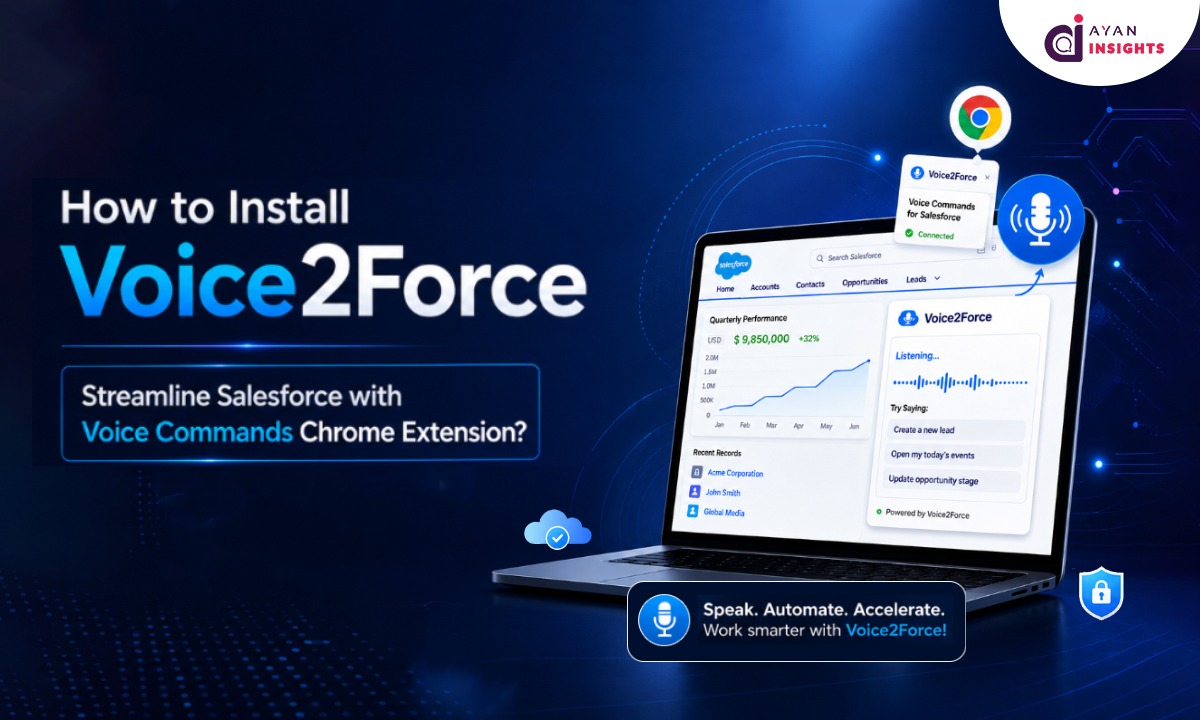
How to Install Voice2Force – Streamline Salesforce with Voice Commands Chrome Extension?

July 24, 2026
17 Views
How to Install Voice2Force – Streamline Salesforce with Voice Commands Chrome Extension?
Summarize this blog post with:

If you’ve ever finished a call and then spent the next five minutes typing up notes, updating a Case, or filling out a Lead record field by field, you already know the drag it puts on your day. Typing into Salesforce between conversations breaks your flow — and it’s often the first thing that gets skipped when you’re busy.

Voice2Force is a free Chrome extension built for Salesforce reps, admins, and anyone who spends their day inside records. It adds a mic icon next to any text-type field on a Salesforce record page or edit page — click it, speak, and your words are transcribed straight into the field. No typing, no tab-switching, no falling behind between calls.

This guide walks you through exactly how to install it.
What Is Voice2Force?

Voice2Force is a Chrome extension by AYAN SOFTWARES that sits on top of your existing Salesforce session. It requires no separate login — it automatically detects your active Salesforce session and activates on salesforce record / edit pages.

Here’s a snapshot of what it can do:

  • Hands-Free Field Entry : A mic icon appears next to any Text, TextArea, Rich Text, or Long Text field on record detail or edit pages
  • Real-Time Transcription : Watch your words appear in the field as you speak, no waiting
  • Editable Before Saving : Review and correct transcribed text before it’s committed, so nothing goes in by mistake
  • Works on Any Object : Standard objects like Lead, Contact, Opportunity, and Case, as well as any custom objects.
  • Customizable Field Types : Choose exactly which field types show the mic icon
  • Global Keyboard Shortcut : Trigger the extension instantly from any Salesforce screen with Ctrl + Shift + V (or Command + Shift + V on macOS)
  • Zero Login Required : Detects your active Salesforce session automatically, no separate credentials to manage

Step-by-Step: Installation Guide

Prerequisites: Before you begin, ensure the following:

  • Google Chrome is installed on your desktop
  • Voice2Force is installed from the Chrome Web Store (Install here)
  • You are logged into your Salesforce Org in the same Chrome browser
  • A working microphone on your device
  • A stable internet connection
  • You have the necessary Salesforce permissions to edit the record in salesforce

Note: This extension works exclusively on Chrome. If you’re using Edge (Chromium-based), it may also work via Chrome Web Store compatibility.

Follow these simple steps to compare two files using Voice2Force

Step 1: Open the Chrome Web Store Listing

Click the link below or copy it into your Chrome address bar:

https://chromewebstore.google.com/detail/voice2force-streamline-sa/pngeejdllpokmpeecciipapjgajniecg

This will take you directly to the official Voice2Force – Streamline Salesforce with Voice Commands page on the Chrome Web Store. Or search “Voice2Force Salesforce” on Google

image1

Step 2: Click “Add to Chrome”

On the extension page, you’ll see a blue “Add to Chrome” button near the top of the listing. Click it.

image2

Step 3: Confirm the Installation

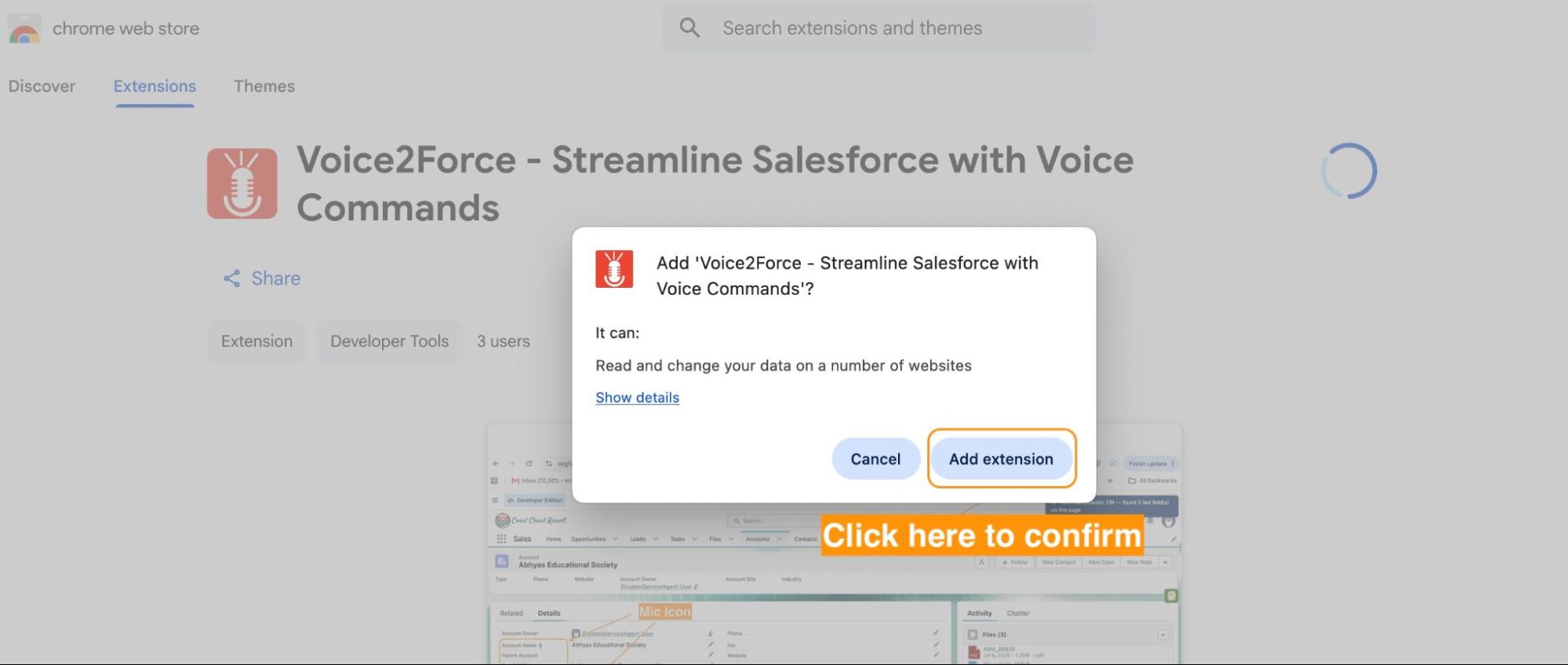
A dialog box will appear asking you to confirm. It will list the permissions the extension needs to function (such as microphone access and access to your active Salesforce tabs).

Click “Add extension” to proceed.

image4

Chrome will download and install the extension automatically. You’ll see a confirmation message once it’s done, and the Voice2Force icon will appear in your Chrome toolbar.

Step 4: Pin the Extension (Recommended)

By default, newly installed extensions may be hidden in the Extensions menu (the puzzle-piece icon 🧩 in the top-right corner of Chrome).

To keep Voice2Force easily accessible:

  • Click the puzzle-piece icon in the Chrome toolbar
  • Find Voice2Force in the list
  • Click the pin icon next to it

image3The extension icon will now always be visible in your toolbar for one-click access.
Step 5: Open a Salesforce Record Page

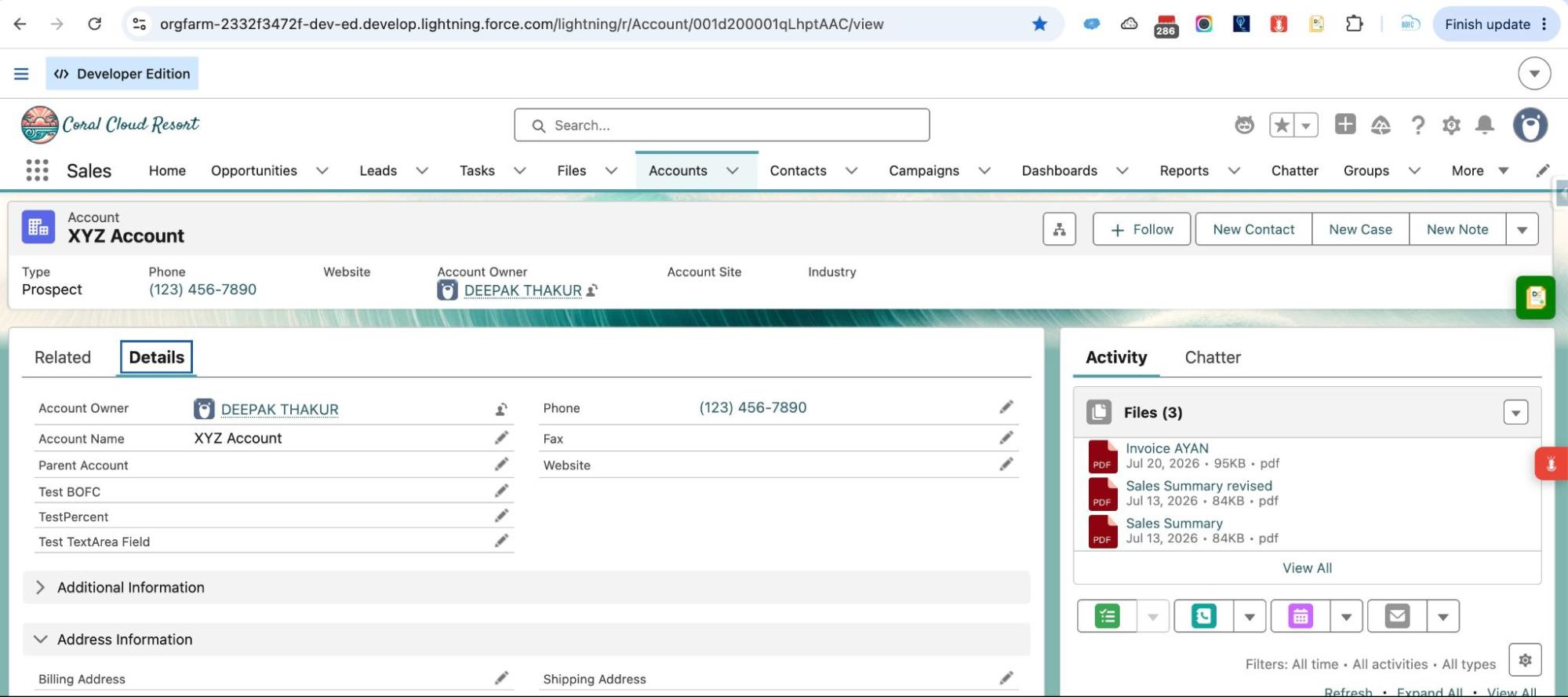
Navigate to your Salesforce Org and open any record — a Lead, Contact, Opportunity, Case, or custom object. Voice2Force works on both detail pages and edit pages.

image6

The extension automatically detects your active Salesforce session. No additional login is required.

Step 6: Launch the Extension

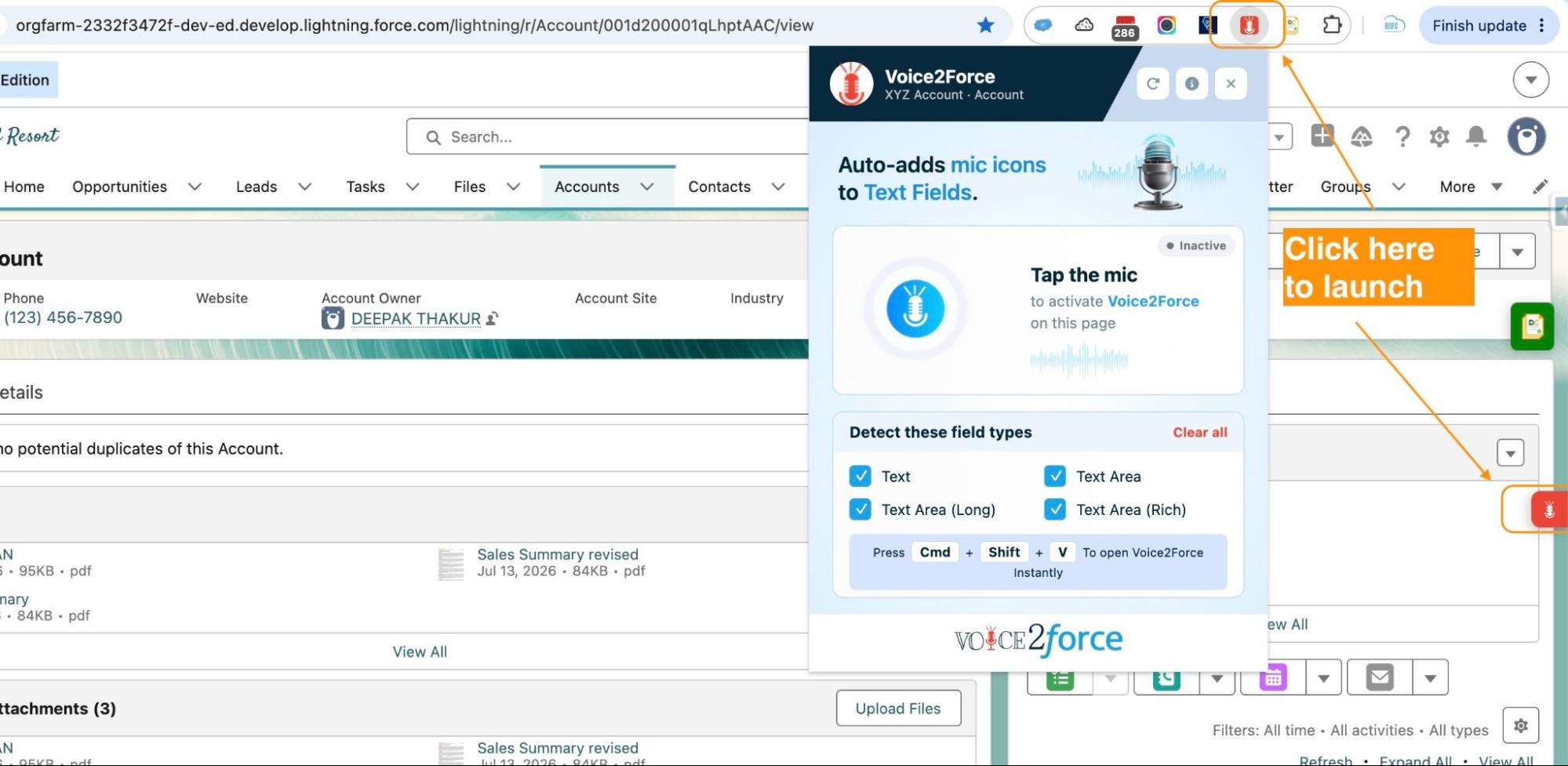
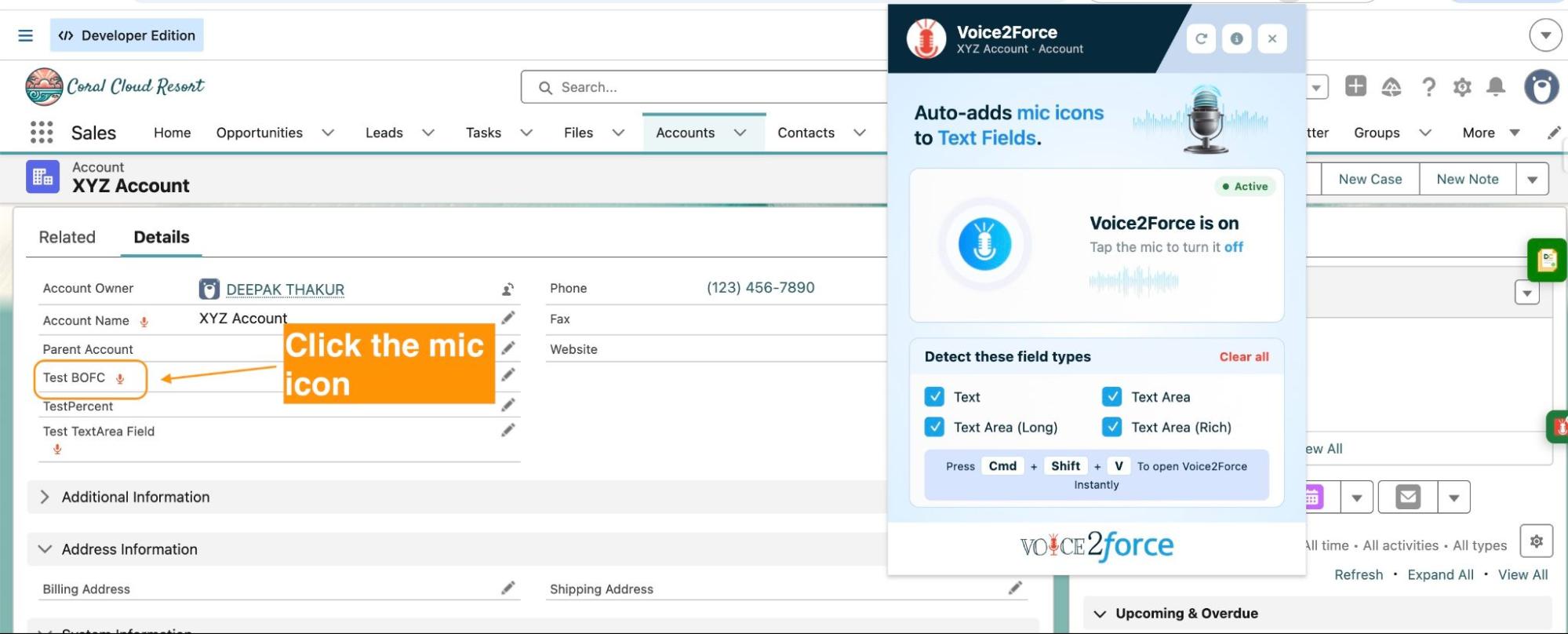
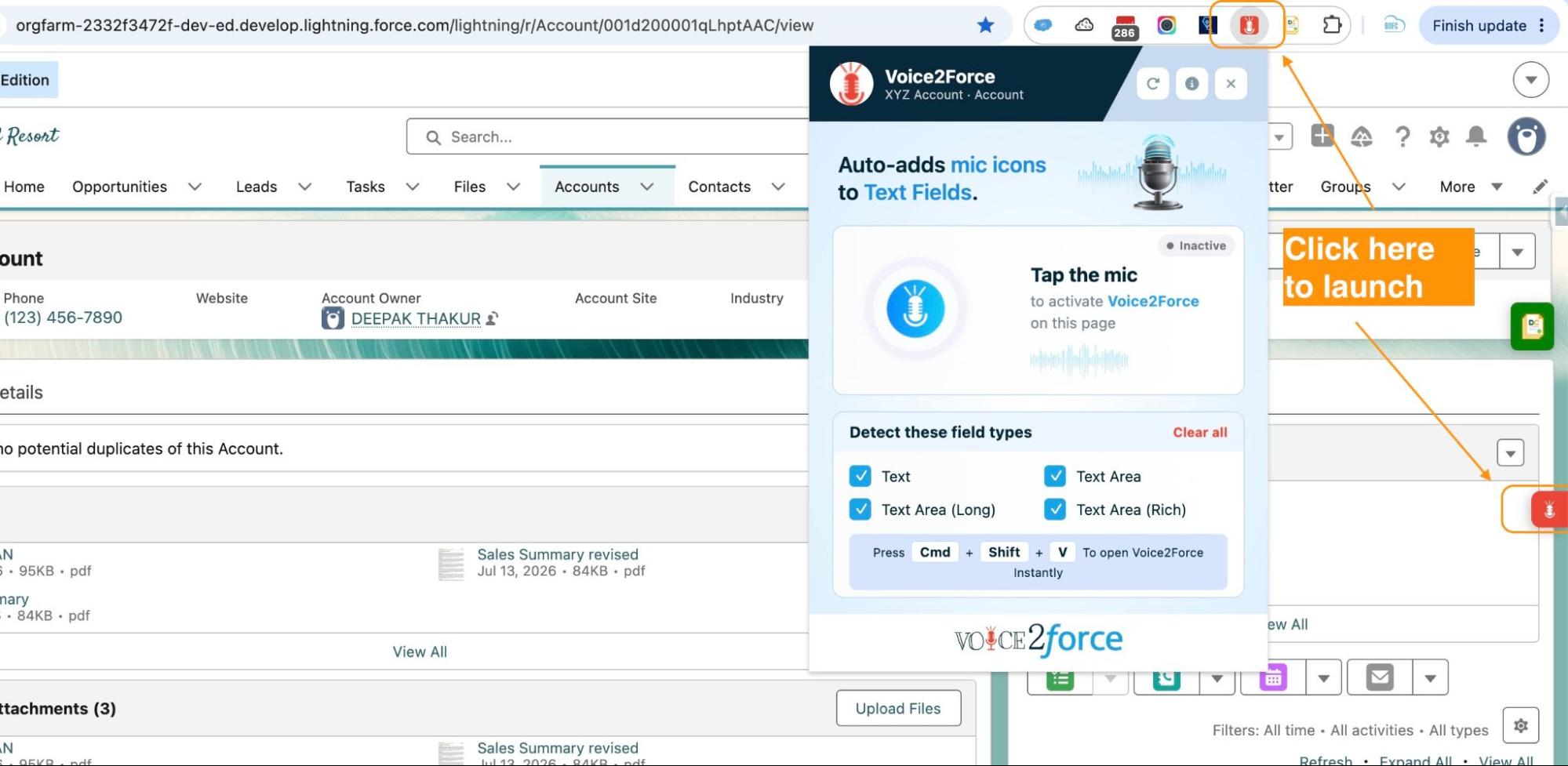
Click the Voice2Force icon in your Chrome toolbar while you’re on a Salesforce record page. A mic icon will appear next to each supported field (Text, TextArea, Rich Text, or Long Text).
image2 1

Alternatively, use the global keyboard shortcut Ctrl + Shift + V (Command + Shift + V on macOS) to trigger it instantly without reaching for the mouse.

Step 7: Activate & Start Dictating

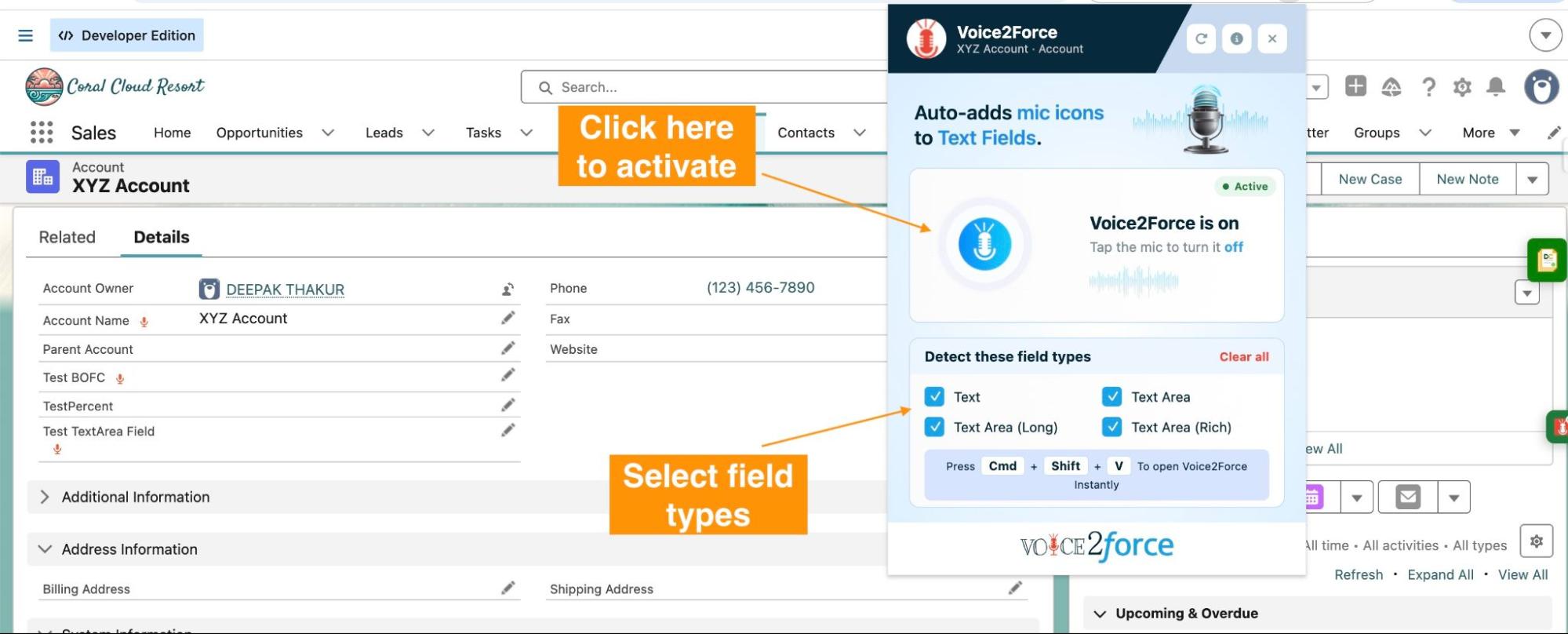
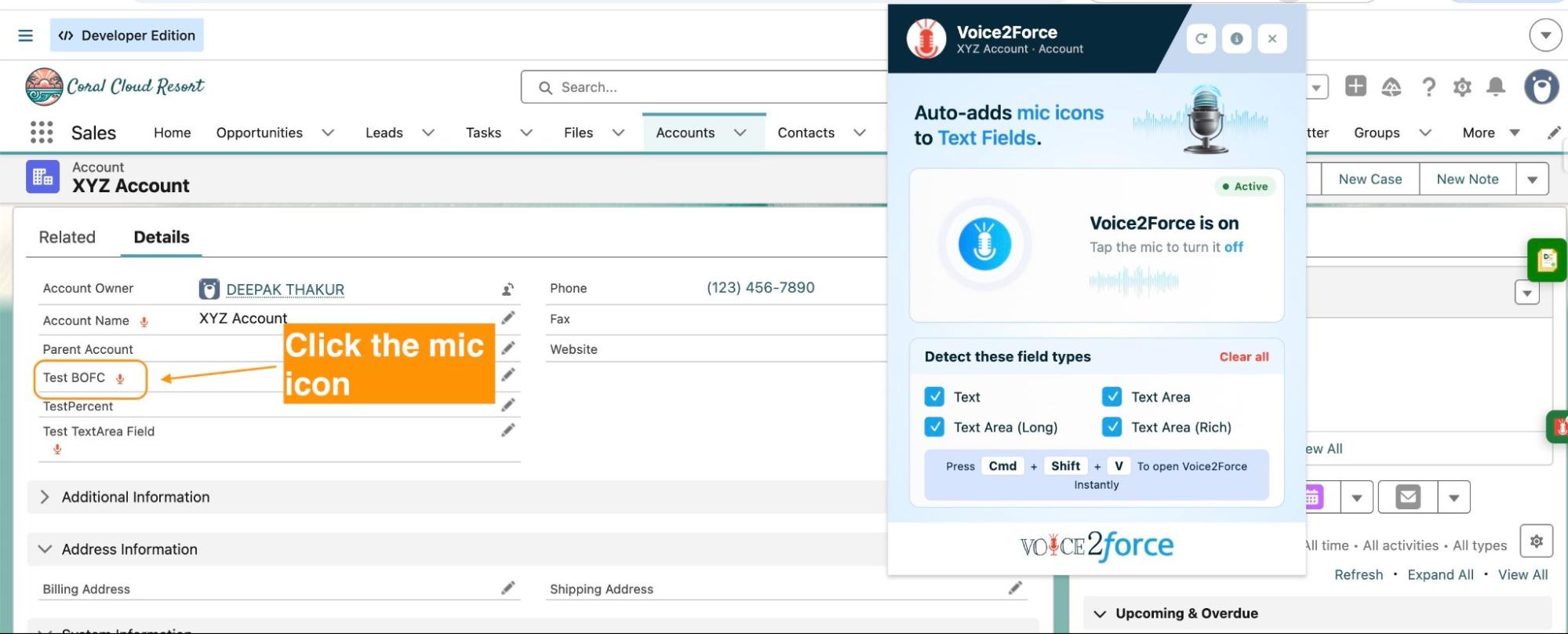
Click the mic icon in the extension panel to activate the extension. Once activated, it will automatically display the mic icon in front of all the selected type of fields.

image9 1

Click the mic icon next to the field you want to fill.

image1 1

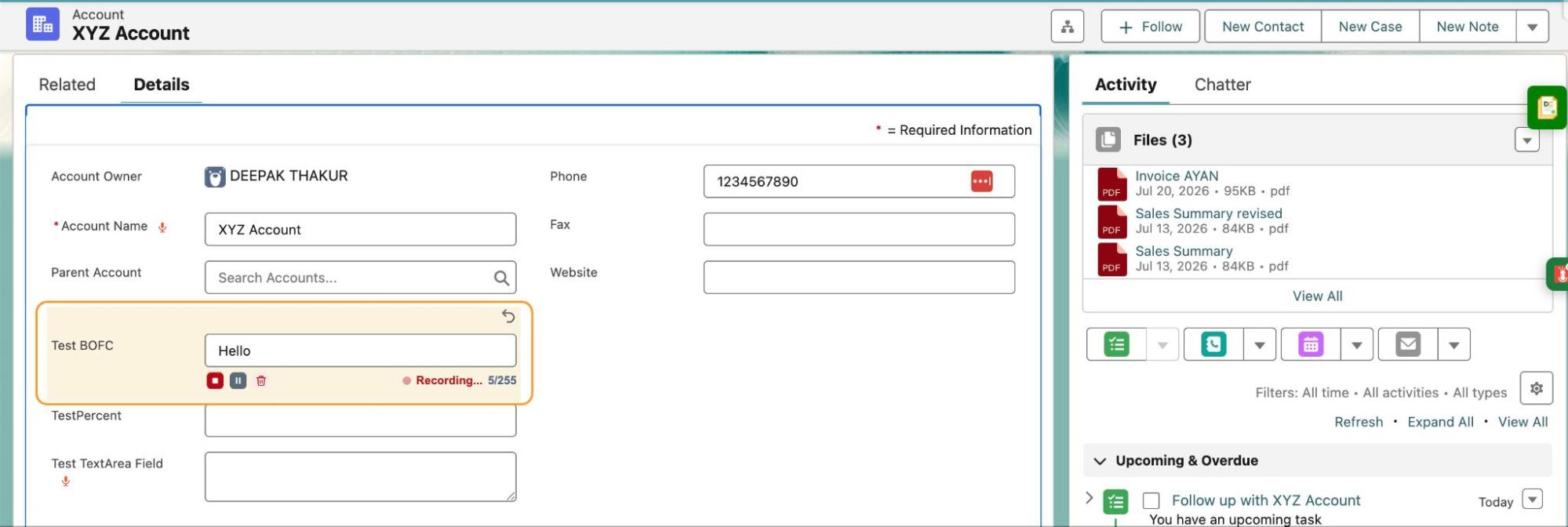
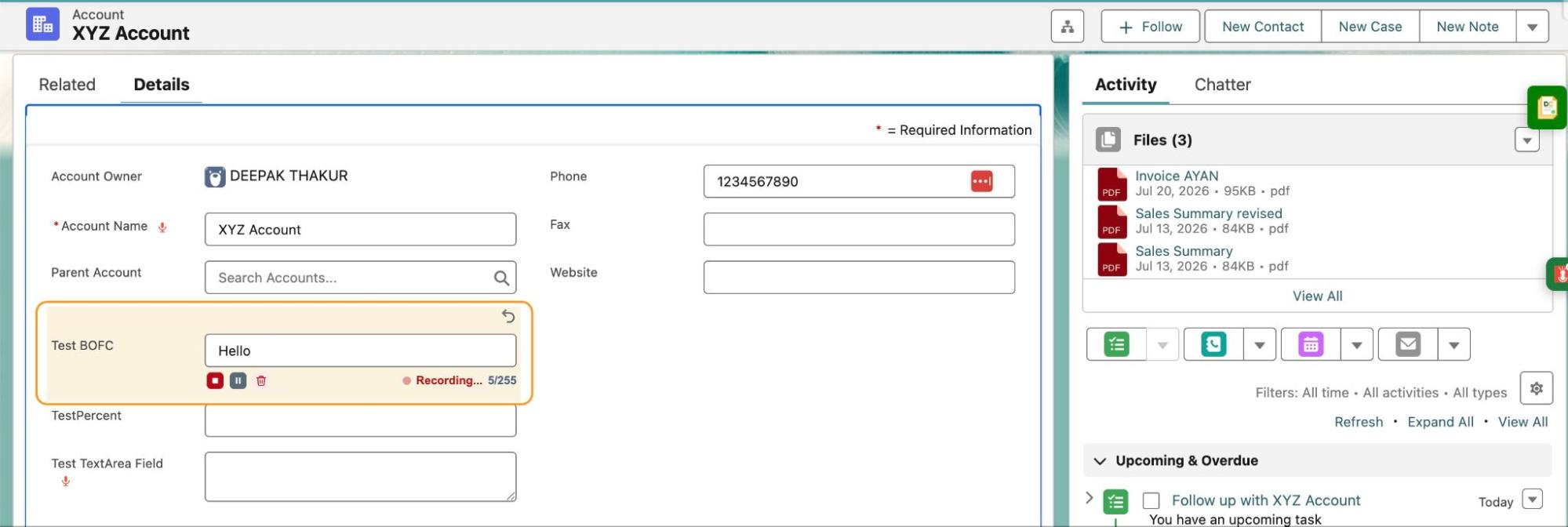
Speak naturally — your words are transcribed into the field in real time. Review the text, edit anything that needs correcting, and save the record just like you normally would.

image4 1

Customising Which Fields Show the Mic Icon

Not every field needs a mic icon. From the extension’s settings, you can choose exactly which field types — Text, TextArea, Rich Text, or Long Text — display the icon, so your record pages stay clean, and only the fields you actually dictate are marked up.

Troubleshooting

The extension doesn’t detect my Salesforce session. Make sure you are logged into Salesforce in the same Chrome browser window/profile where the extension is installed. Refresh the record page and try again.

I don’t see any mic icons on the page. Confirm you’ve clicked the Voice2Force icon in the toolbar to activate it on that page, and check that the field type is enabled in your settings.

The mic icon isn’t picking up my voice. Check that Chrome has microphone permission for the Salesforce domain (Chrome may prompt you the first time you click the mic icon), and confirm your microphone is working in other apps.

The “Add to Chrome” button isn’t showing. Ensure you’re using Google Chrome (not Firefox, Safari, or another browser) and that you’re viewing the Chrome Web Store page on a desktop computer.

Privacy & Data Security

Voice2Force has a clear privacy stance: the developer does not collect or use your data. Voice input is processed only to transcribe text into the field you select, and the extension works within your existing Salesforce session and permissions — so you only ever update records you’re already authorised to edit. No credentials are stored by the extension.

The extension is published by AYAN SOFTWARES, a verified trader on the Chrome Web Store, and is compliant with EU laws.

Get Started Today

Installing Voice2Force takes under a minute, and the time savings start with your very next record update. Whether you’re a sales rep logging call notes on the go, a support agent updating Cases between tickets, or an admin who’s tired of typing into text areas. This extension removes the friction between doing the work and logging it in Salesforce.

👉 Install Voice2Force on Chrome Web Store

Have questions or need support? Reach out to the team at mohit.bansal@ayansoftwares.com
or call +91 99531 70767.

Stop typing into Salesforce. Start speaking your updates instead.

How useful was this post?

Click on a star to rate it!

Average rating 0 / 5. Vote count: 0

No votes so far! Be the first to rate this post.

Written by

Mohit Bansal

Salesforce Technical Architect | Lead | Salesforce Lightning & Integrations Expert | Pardot | 5X Salesforce Certified | App Publisher | Blogger

Get the latest tips, news, updates, advice, inspiration, and more….

Contributor of the month
contributor
Akash P T

Salesforce Developer with 1.8+ years of experience in Apex, LWC, Flows, REST API integrations and Agentforce. Passionate about automation, scalable CRM solutions, and sharing Salesforce knowledge with the community.

...
Categories
...
Boost Your Brand's Visibility

Want to promote your products/services in front of more customers?

...

Leave a Reply

Your email address will not be published. Required fields are marked *