Why This Release Feels Different
Flow has quietly become the thing Salesforce admins live in. Workflow Rules are gone, Process Builder is on its way out, and if you’re automating anything on the platform these days, you’re doing it in Flow. So every time Salesforce ships an update to it, it’s worth paying attention.
What stands out about Winter ’27 isn’t one massive headline feature — it’s the sheer number of small, thoughtful fixes stacked on top of a few genuinely big additions. It’s the kind of release where you read through the notes going “oh thank god” more than once.
Here’s what made the cut.
1. Flow Tags Finally Let You Organise Your Mess
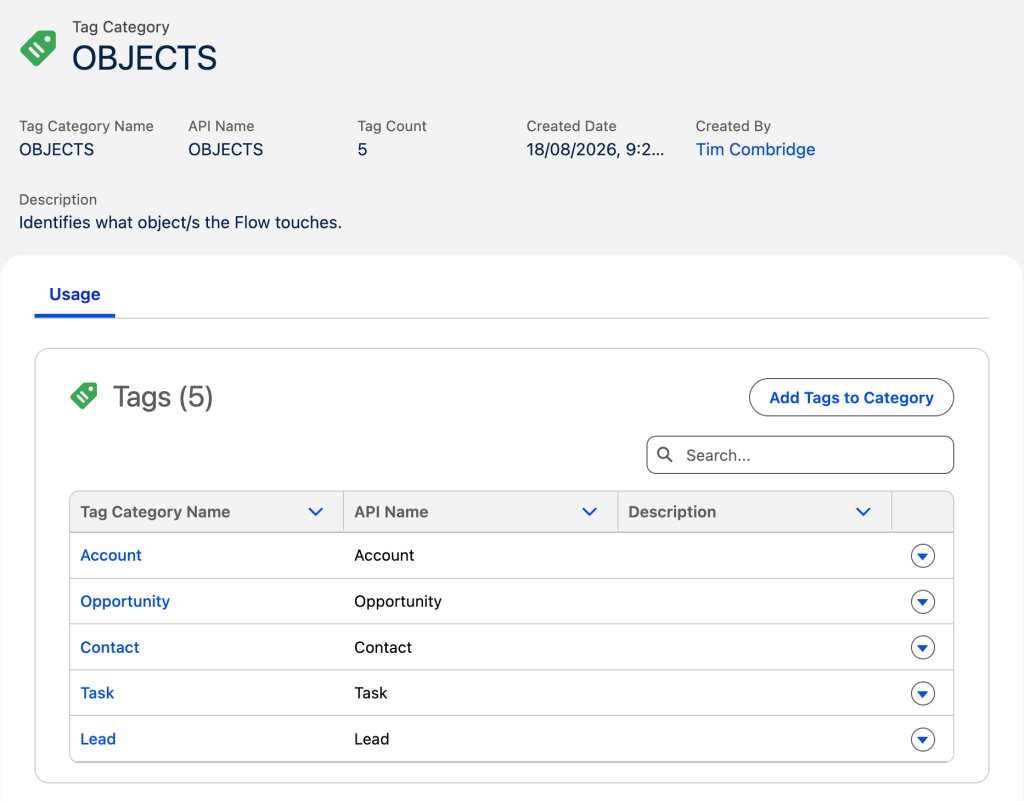
Anyone who’s inherited an org with 200+ flows knows the pain. You open the flow list, and it’s just… names. No structure, no way to group things, nothing.Winter ’27 fixes this with Flow Tags. You can now tag flows individually, or in bulk from the Automation app, and group those tags into categories. The first thing I’d do with this? Create a “Subflows” category and tag every subflow by the object or action it handles. It sounds small, but the first time you’re trying to find “that one subflow that updates the Account owner” six months from now, you’ll be grateful.
2. A Real Test Mode for Flow Builder (Beta)
This one’s my personal favourite in the whole release, and I don’t say that lightly.
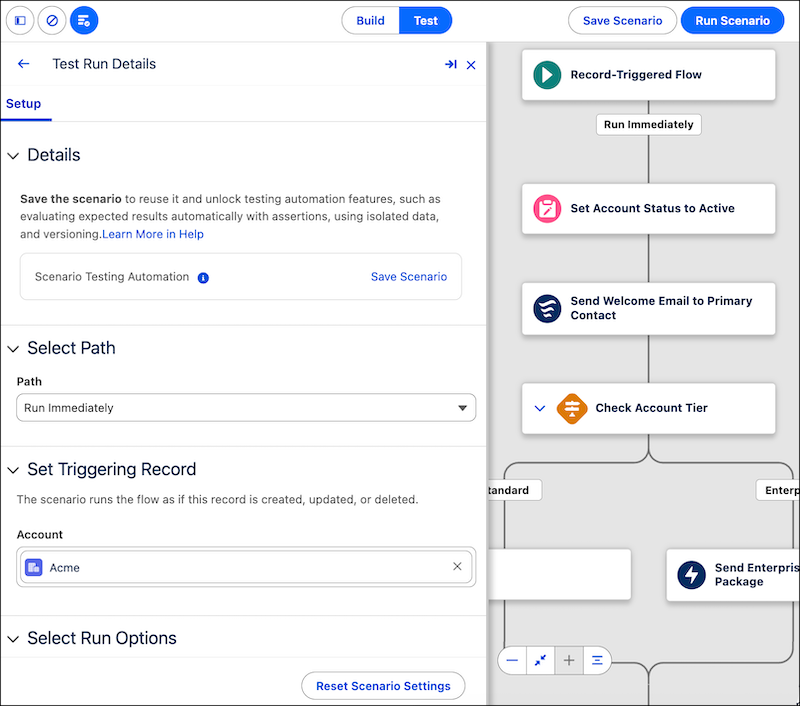
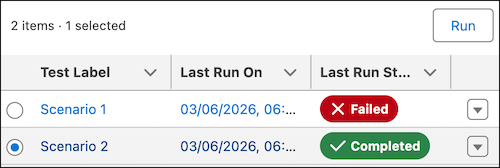
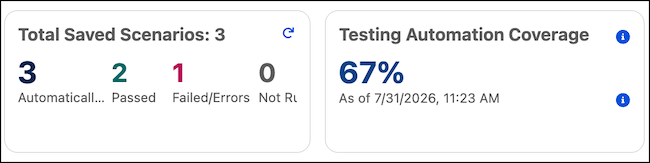
Up until now, testing a flow meant Debug mode — run it, watch it fail, fix it, run it again, repeat forever, with nothing saved between runs. Winter ’27 replaces that with an actual Test Mode. You can now save test scenarios and rerun them later, which means you can build a real regression suite for your flows instead of manually re-entering the same test data every time you touch anything.
Is it a full testing framework like you’d get with Apex? No. But it’s a massive step in the right direction, and it’s the kind of thing that makes me optimistic about where Flow governance is headed.
3. Marketing Cloud Flow Builder Gets Some Love Too
Two solid wins here if you work in Marketing Cloud. First, order-triggered flows — return, shipment, status change — now fire through a REST API in about three seconds. Previously you were waiting 7–10 minutes, which, if you’ve ever tried to explain that delay to a marketing stakeholder, you know is not a fun conversation.
Second, cloning an audience flow is no longer a landmine. Copies used to reference the original messaging assets, which meant editing a “copy” could quietly mess with a live campaign. Now you get to choose: duplicate the emails, SMS, WhatsApp, and RCS messages, or just link back to the originals — plus each copy gets its own segments and trigger definitions.
4. Bulk Screen Flow Actions From List Views and Related Lists
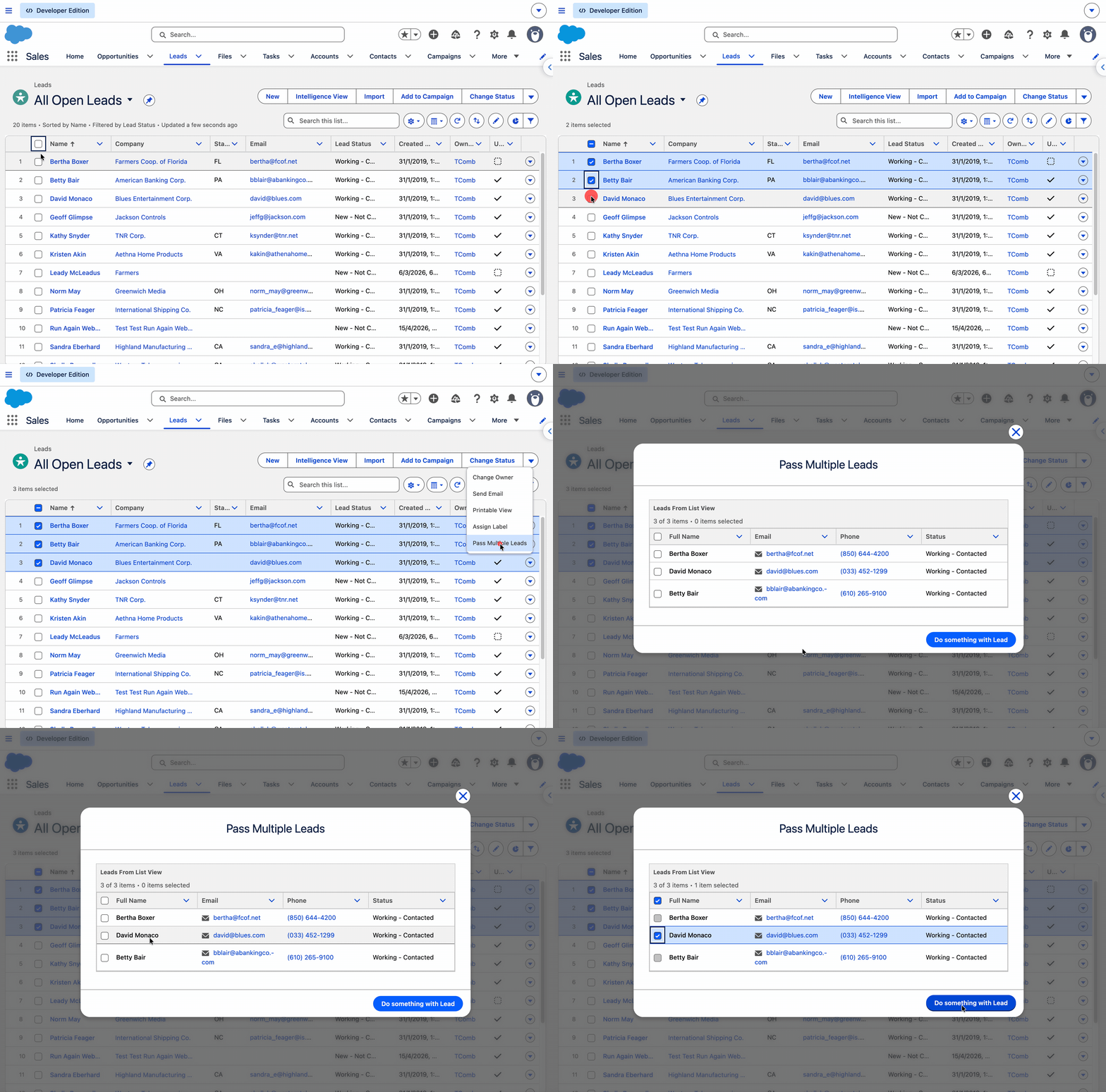
This is one people have been asking for, honestly, for years. Instead of clicking into a record one at a time to run a screen flow, you can now pass in a whole batch of record IDs at once (as a simple text collection) and process them together.
Set it up as a Flow Quick Action on a list view or related list, and suddenly a task that took twenty clicks takes two. If you deal with any kind of bulk data cleanup or mass updates, this is going to save you real time.
5. You Can Finally Resize the Screen Flow Modal
A small thing, but an oddly satisfying one. When you launch a screen flow from a quick action, you can now control how big the popup modal is. If you’ve ever built a screen with a data table or a few too many fields and watched it get crammed into a tiny window, you know exactly why this matters.
6. Reactive Formulas That Actually Behave
Here’s a bug — well, a limitation — that’s tripped up more admins than Salesforce probably realises. Conditional visibility on screen flows never evaluated correctly when the formula referenced something on the same screen. You’d set it up, test it, and it just… wouldn’t react.
Winter ’27 fixes this properly. Reactive formulas referencing components on the current screen now evaluate the way you’d expect them to. This is a quiet fix, but it’ll change how a lot of dynamic screens get built going forward.
7. Flow Builder Catches Your Mistakes Before You Save
Two related fixes landed together here, and both are the kind of thing that saves you from a 2 a.m. “why is this flow failing intermittently” debugging session.
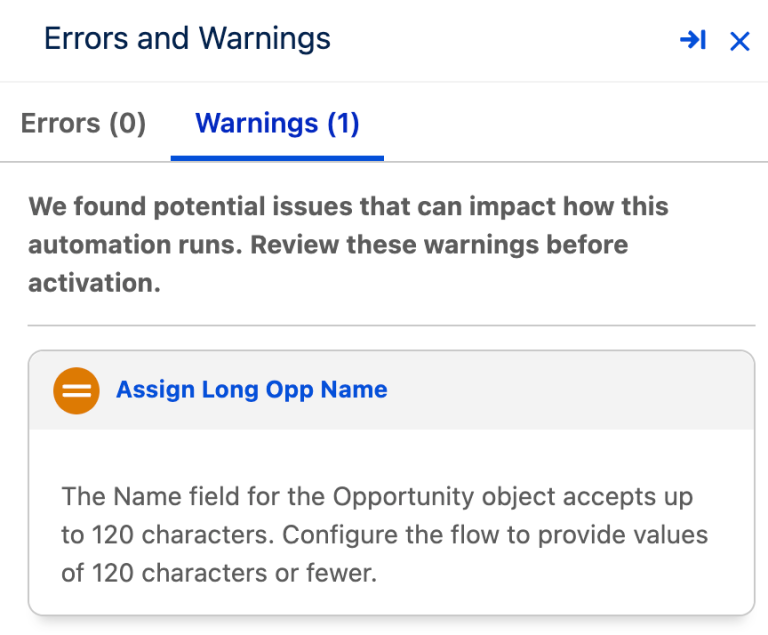
First, if you’re using a Create Records element with a record variable and you’ve forgotten to populate a required field, Flow Builder will now warn you at save time instead of letting the flow fail at runtime. Second, it’ll also flag when a value is likely too long for the field it’s going into. Both of these are classic “worked fine in testing, broke in production because of one weird record” scenarios, and both are now caught earlier.
8. Enforce User Permissions No Matter How the Flow Is Triggered
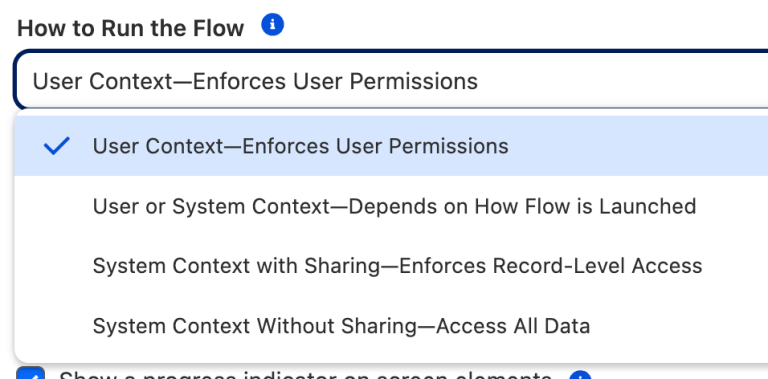
There’s a new run-context option — “User Context, Enforces User Permissions” — that locks a flow into respecting whatever access the running user actually has, regardless of how or where the flow gets called from. For anyone thinking seriously about data security in their automation, this gives you a much more predictable, lockable option than what was available before.
9. End Elements Are Now Saved to the Flow’s Metadata
This is a bit of an inside-baseball one, but it matters more than it sounds. The end element you see on the Flow Builder canvas was never actually saved in the flow’s XML — it was just generated visually. Winter ’27 changes that, so the end element is now part of the actual metadata.
Why does this matter? Anything that reads or edits your flows outside of Flow Builder — including AI coding tools — can now see exactly where a branch ends, matching what you see on screen. As more tooling starts interacting with Flow metadata directly, this kind of consistency is going to matter a lot more than it used to.
10. Keyboard Shortcuts Finally Arrive in Flow Builder
Not glamorous, but genuinely useful: you can now navigate between elements on the canvas — including across different branches — using your keyboard, along with standard copy-paste shortcuts. If you build a lot of flows, this alone will shave real time off your day.
11. Flow Version Comparisons Got a Lot More Useful
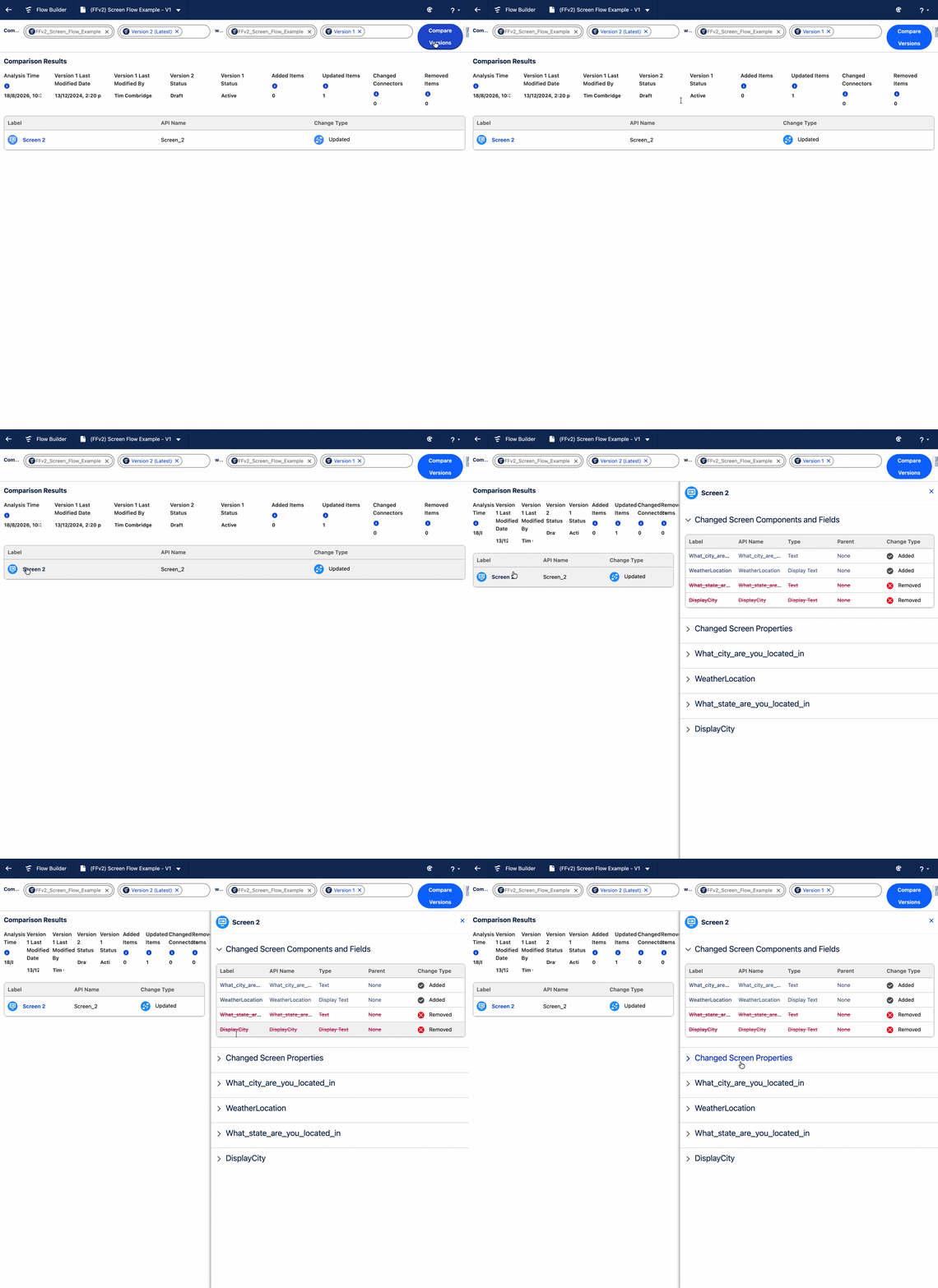
Comparing two versions of a flow used to mean squinting at a Change Details column and hoping for the best. That column is gone now, replaced by the ability to click into individual changes and actually see what happened. It’s a small UI shift that makes a genuinely tedious task much less painful.
12. Spot Unused Resources Without the Guesswork
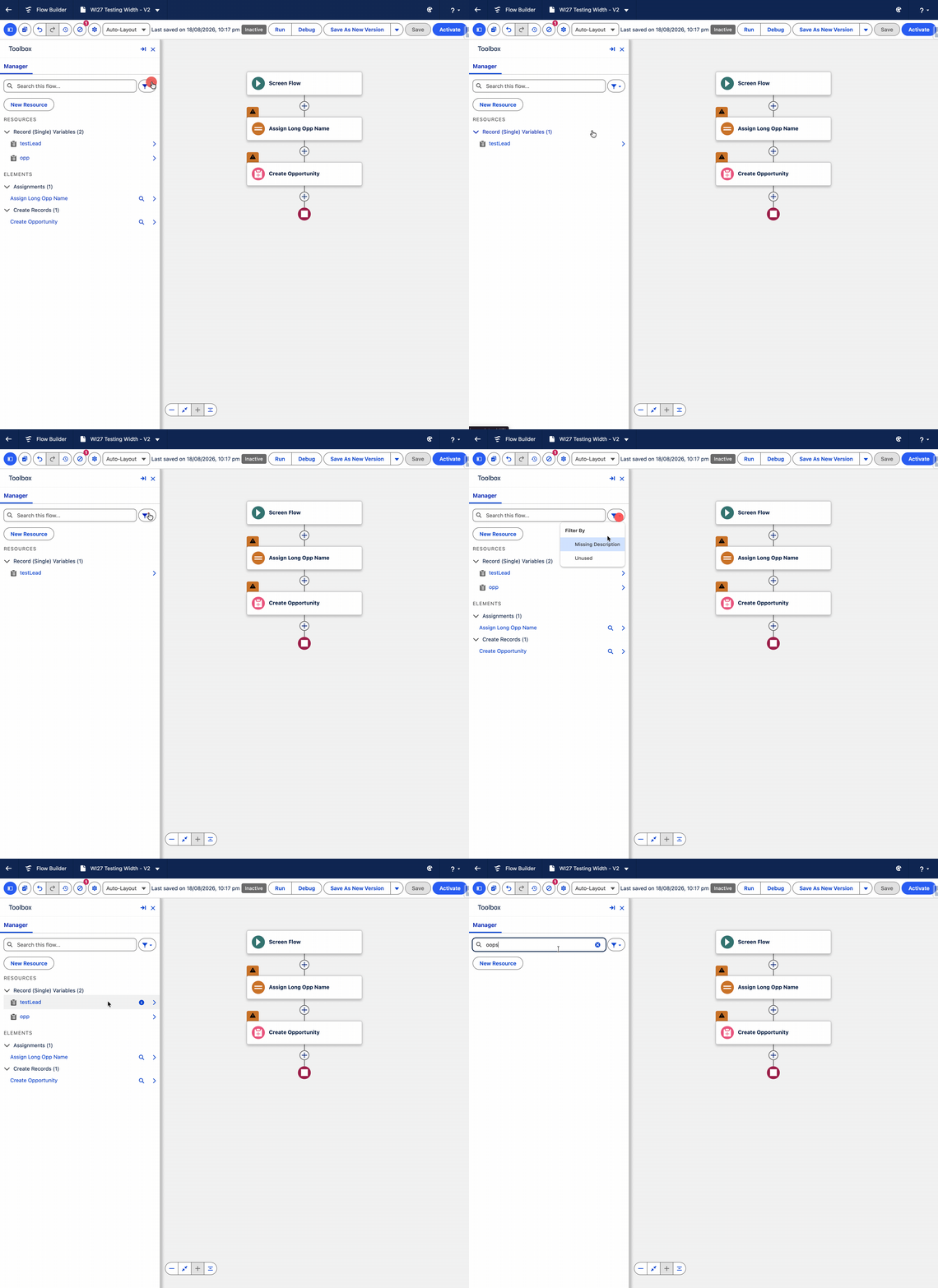
There’s a new filter that shows you which resources in a flow are no longer being used, or are missing descriptions entirely. If you’ve ever inherited a flow from someone else and stared at a variable called tempVar2 with zero context, you know exactly why this one matters. Cleanup and handovers are about to get a lot less painful.
13. Group Elements to Tame Sprawling Flows
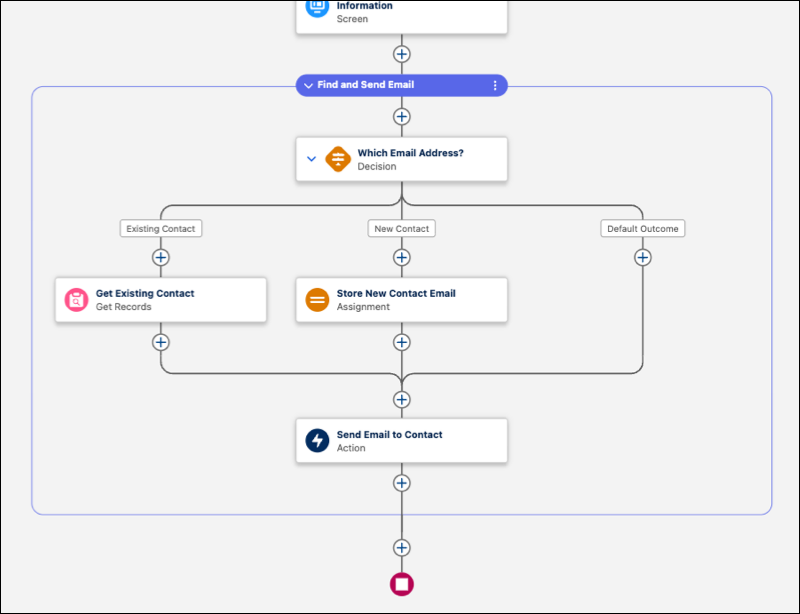
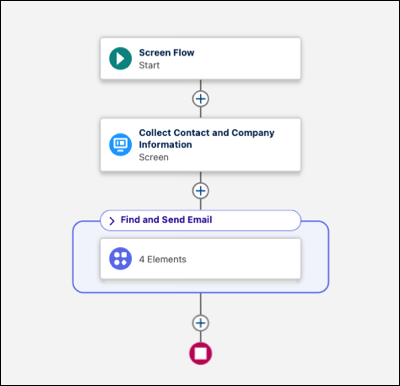
You can now visually group sections of a flow, give the group a label and description, and collapse or expand it as needed. It’s not quite a subflow, but it’s a huge step toward making genuinely complex flows readable at a glance instead of a wall of connected boxes.
14. Track Every Change With Edit History
There’s now a proper Edit History panel showing a timeline of every save on a flow, letting you restore earlier versions and drill into exactly what changed at the element level. For teams that care about accountability — or just want to know who changed what and when — this is a big improvement over trying to reconstruct history from memory.
15. Flow Builder Gets the Cosmos Theme Refresh
Saving the cosmetic one for last: Flow Builder finally gets the SLDS 2 visual update through Salesforce’s new Cosmos Theme. It’s not going to change how you build automation, but it does bring the tool’s look in line with the rest of the modern Salesforce interface — and honestly, it was overdue.