Lightning Spinner in LWC: Complete Guide with Code Examples

September 10, 2025
1110 Views
Lightning Spinner in LWC: Complete Guide with Code Examples
Summarize this blog post with:

The Lightning Spinner is an essential component in any modern Salesforce application. It provides visual feedback to users during asynchronous operations, like waiting for an Apex call to return, processing a form submission, or loading large amounts of data. A well-implemented spinner significantly improves the user experience by indicating that the application is working and hasn’t frozen.

In this comprehensive guide, we’ll explore how to use the Lightning Spinner in LWC, covering everything from basic implementation to advanced patterns.

What is the Lightning Spinner in LWC?

The lightning-spinner is a standard LWC component used to show a loading animation to users. It is part of the base Lightning Components library, meaning you don’t need to install anything extra to use it. Its primary purpose is to communicate a “wait” state to the user.

Key Attributes:
  • variant: Defines the style of the spinner, such as base, brand, or inverse.
  • size: Sets how big the spinner appears, options include small, medium, and large.
  • alternative-text: The assistive text for screen readers (crucial for accessibility).

Basic Implementation

Let’s start with the simplest way to use the spinner. You just drop the component into your HTML template.

HTML (spinnerBasic.html)
<template>
    <h2>Basic Spinner Example</h2>
    <lightning-spinner
        alternative-text="Loading, please wait...">
    </lightning-spinner>
    <p>Content is being loaded. Please wait.</p>
</template>

This will display a standard spinner. However, it’s always visible, which isn’t very useful. The real power comes from conditionally rendering it.

Controlling the Spinner with a Condition

You typically want to show the spinner only when an operation is in progress. This is done by using a reactive property and the if:true directive.

HTML (spinnerConditional.html)
<template>
    <h2>Conditional Spinner</h2>
    
    <lightning-button
        label="Start Operation"
        onclick={handleStart}
    ></lightning-button>

    <!-- The Spinner is only visible when 'isLoading' is true -->
    <template if:true={isLoading}>
        <lightning-spinner
            alternative-text="Operation in progress..."
            size="medium">
        </lightning-spinner>
    </template>

    <template if:false={isLoading}>
        <p>Operation complete!</p>
    </template>
</template>
JavaScript (spinnerConditional.js)
import { LightningElement } from 'lwc';

export default class SpinnerConditional extends LightningElement {
    isLoading = false;

    handleStart() {
        // Set loading state to true, showing the spinner
        this.isLoading = true;

        // Simulate a long-running operation (e.g., an Apex call)
        setTimeout(() => {
            // After operation is done, set loading to false
            this.isLoading = false;
        }, 3000); // Wait for 3 seconds
    }
}

In this example, clicking the button sets isLoading to true, which makes the spinner visible. After a 3-second timeout (simulating a server call), isLoading is set back to false, hiding the spinner and showing the completion message.

How to Use Lightning Spinner with Apex Calls in LWC

The most common use case for a spinner is during an Apex method call. Here’s how you properly integrate it using async/await for clean, readable code.

JavaScript (spinnerWithApex.js)
import { LightningElement, track } from 'lwc';
import getAccounts from '@salesforce/apex/AccountController.getAccounts';

export default class SpinnerWithApex extends LightningElement {
    @track accounts;
    isLoading = false; // Controls the spinner
    error;

    async loadAccounts() {
        // 1. Show the spinner
        this.isLoading = true;
        // Clear previous data and errors
        this.accounts = undefined;
        this.error = undefined;

        try {
            // 2. Call the Apex method asynchronously
            const result = await getAccounts({ limit: 50 });
            this.accounts = result;
        } catch (error) {
            this.error = error.body.message;
            console.error('Error loading accounts', error);
        } finally {
            // 3. Hide the spinner in the finally block
            // This ensures it happens whether the call succeeds or fails
            this.isLoading = false;
        }
    }
}
HTML (spinnerWithApex.html)
<template>
    <h2>Load Accounts with Spinner</h2>
    
    <lightning-button 
        label="Load Accounts" 
        onclick={loadAccounts}
        variant="brand">
    </lightning-button>

    <!-- Loading Spinner Template -->
    <template if:true={isLoading}>
        <div class="slds-m-around_medium">
            <lightning-spinner 
                alternative-text="Loading accounts..." 
                size="large">
            </lightning-spinner>
        </div>
    </template>

    <!-- Error Message Template -->
    <template if:true={error}>
        <div class="slds-m-around_medium slds-theme_error">
            <p>Error: {error}</p>
        </div>
    </template>

    <!-- Data Display Template -->
    <template if:true={accounts}>
        <ul class="slds-m-around_medium">
            <template for:each={accounts} for:item="acc">
                <li key={acc.Id}>{acc.Name}</li>
            </template>
        </ul>
    </template>
</template>

Key Points:

  • finally block: Using a try…catch…finally structure is critical. The finally block ensures that the spinner is turned off (this.isLoading = false) no matter if the Apex call succeeds or fails, avoiding endless loading in case of errors.
  • State Management: Before the call, we clear previous data and errors to provide a clean slate for the new operation.

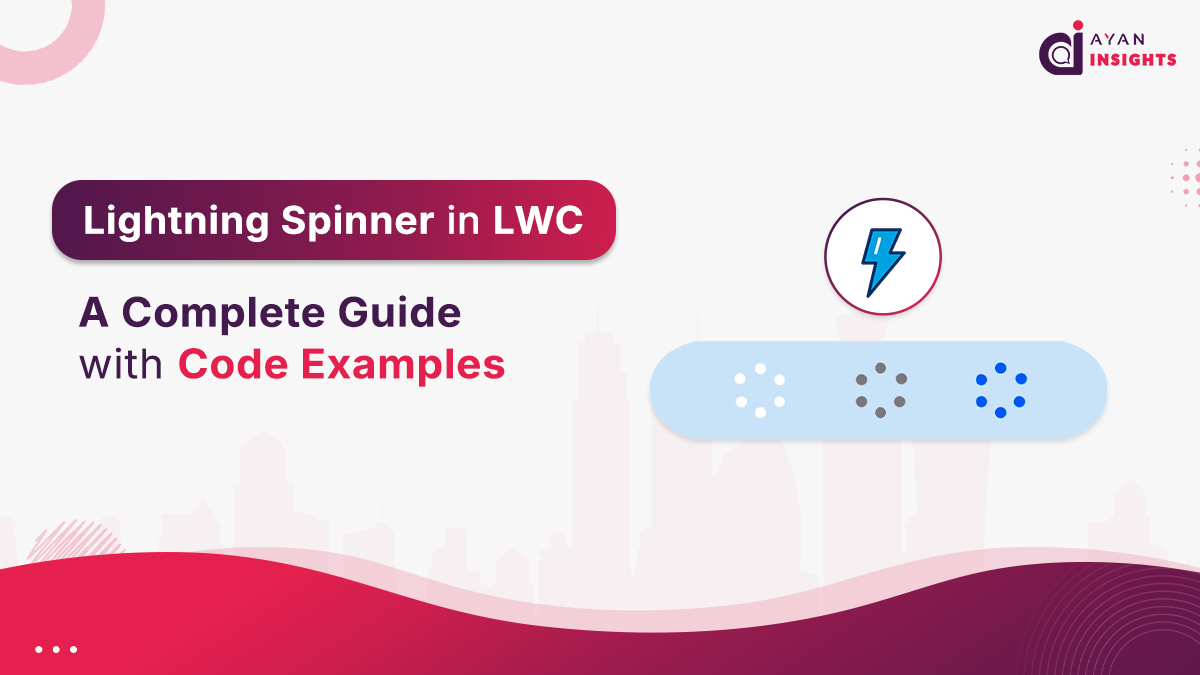
Lightning Spinner Variants and Sizes in LWC

You can customize the spinner’s appearance to fit different contexts.

  • Variant: Use variant=”inverse” when placing the spinner on a dark background.
  • Size: Choose from small, medium, or large.

Example:

<lightning-spinner
    alternative-text="Loading on dark background"
    variant="inverse"
    size="large">
</lightning-spinner>

Using Lightning Spinner with Overlay in LWC

Sometimes you want to show a spinner and prevent the user from interacting with the underlying content. Salesforce’s Blueprint recommends using a “loading spinner” inside a semi-transparent overlay.

HTML (spinnerOverlay.html)
<template>
    <h2>Spinner with Overlay</h2>
    <lightning-button label="Load Data" onclick={handleLoad}></lightning-button>

    <!-- The overlay div. 'isLoading' controls its visibility -->
    <template if:true={isLoading}>
        <div class="loading-overlay">
            <!-- The spinner is centered within the overlay -->
            <lightning-spinner 
                alternative-text="Loading, please wait..." 
                size="large"
                variant="brand">
            </lightning-spinner>

        </div>
    </template>

    <p>Other content that gets covered by the overlay.</p>
</template>
CSS (spinnerOverlay.css)
.loading-overlay {
    position: absolute;
    z-index: 100; /* Ensure it's on top of everything */
    top: 0;
    left: 0;
    right: 0;
    bottom: 0;
    background-color: rgba(255, 255, 255, 0.8); /* Semi-transparent white */
    display: flex;
    align-items: center; /* Vertical center */
    justify-content: center; /* Horizontal center */
}

This pattern is perfect for modal popups or when loading an entire page.

7 Best Practices for Using Lightning Spinner in LWC

  1. Always add alternative text**: ** This is not optional. It’s required for accessibility (ADA and WCAG compliance) so screen readers can describe what the spinner means to visually impaired users.
  2. Only for Asynchronous Operations: Don’t show a spinner for operations that complete instantly. The quick flash (a “spinner flash”) is distracting and creates a bad user experience.
  3. Consider a Target Area: Instead of a full page overlay, sometimes it’s better to show a small spinner within a specific section of the UI that is being updated (e.g. inside a table or a form). This provides more context to the user.
  4. Combine with other UX Indicators: For very long operations, consider a progress bar or more detailed status messages alongside the spinner.
  5. Guarantee Dismissal: Always hide the spinner in a finally block or equivalent error handling so it never gets stuck “on”.
  6. Prefer skeletons/placeholders when possible
    For content heavy loads, skeletons (placeholder shapes) often provide a better perceived performance than a spinner alone.
  7. Test variants, sizes and mobile behavior
    Verify variant=”inverse” on dark backgrounds, test size options and confirm the overlay and positioning work on mobile and inside modals.
Also Read

Don’t forget to checkout: Agentforce Integration: RAG Pipelines, Indexing and Security.

Conclusion

The lightning-spinner is a simple yet powerful tool for enhancing the usability of your Salesforce applications. By following the patterns outlined in this guide, conditional rendering, integration with Apex, and using an overlay—you can provide clear, accessible feedback to your users during wait times, making your LWCs feel more professional and responsive.

How useful was this post?

Click on a star to rate it!

Average rating 0 / 5. Vote count: 0

No votes so far! Be the first to rate this post.

Written by

Khumed Khatib

8x Salesforce certified || Senior Engineering Lead Salesforce at Persistent Systems || 2x Ranger || Blogger || LWC || Aura||integration

Get the latest tips, news, updates, advice, inspiration, and more….

Contributor of the month
contributor
Mykyta Lovygin

SFCC Developer | SFCC Technical Architect | Salesforce Consultant | Salesforce Developer | Salesforce Architect |

...
Categories
...
Boost Your Brand's Visibility

Want to promote your products/services in front of more customers?

...

Leave a Reply

Your email address will not be published. Required fields are marked *