Winter ’27: Pick Many Records and Fix Them All in One Go

October 05, 2026
16 Views
Winter ’27: Pick Many Records and Fix Them All in One Go
Summarize this blog post with:

Winter ’27 was a very big release from Salesforce. It had so many new things that one useful feature got lost in the crowd.

That feature lets you work on many records at the same time using a Screen Flow. You don’t have to open each record, one after another.

In this blog, we will look at what it is, how to set it up, and how you can use it. We will keep it simple. Let’s go!
What are mass actions?

First, let’s learn a few words.
  • A record is one row of information, like one customer.
  • A List View is a page that shows many records in a list
  • A Related List is a small list inside a record. For example, the people who work at one company.
  • A Screen Flow is a small tool you build without code. It shows screens that people can click and type on.

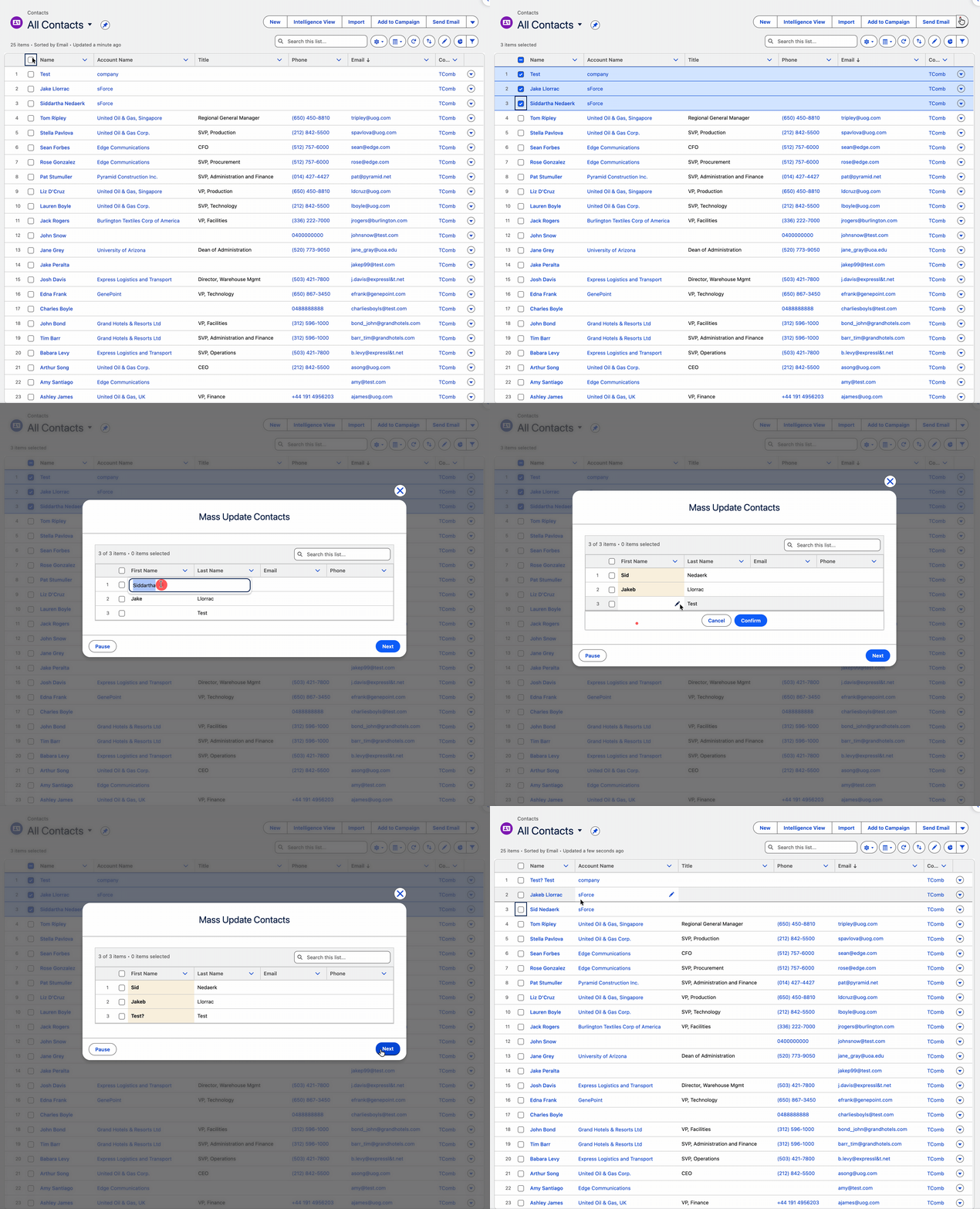
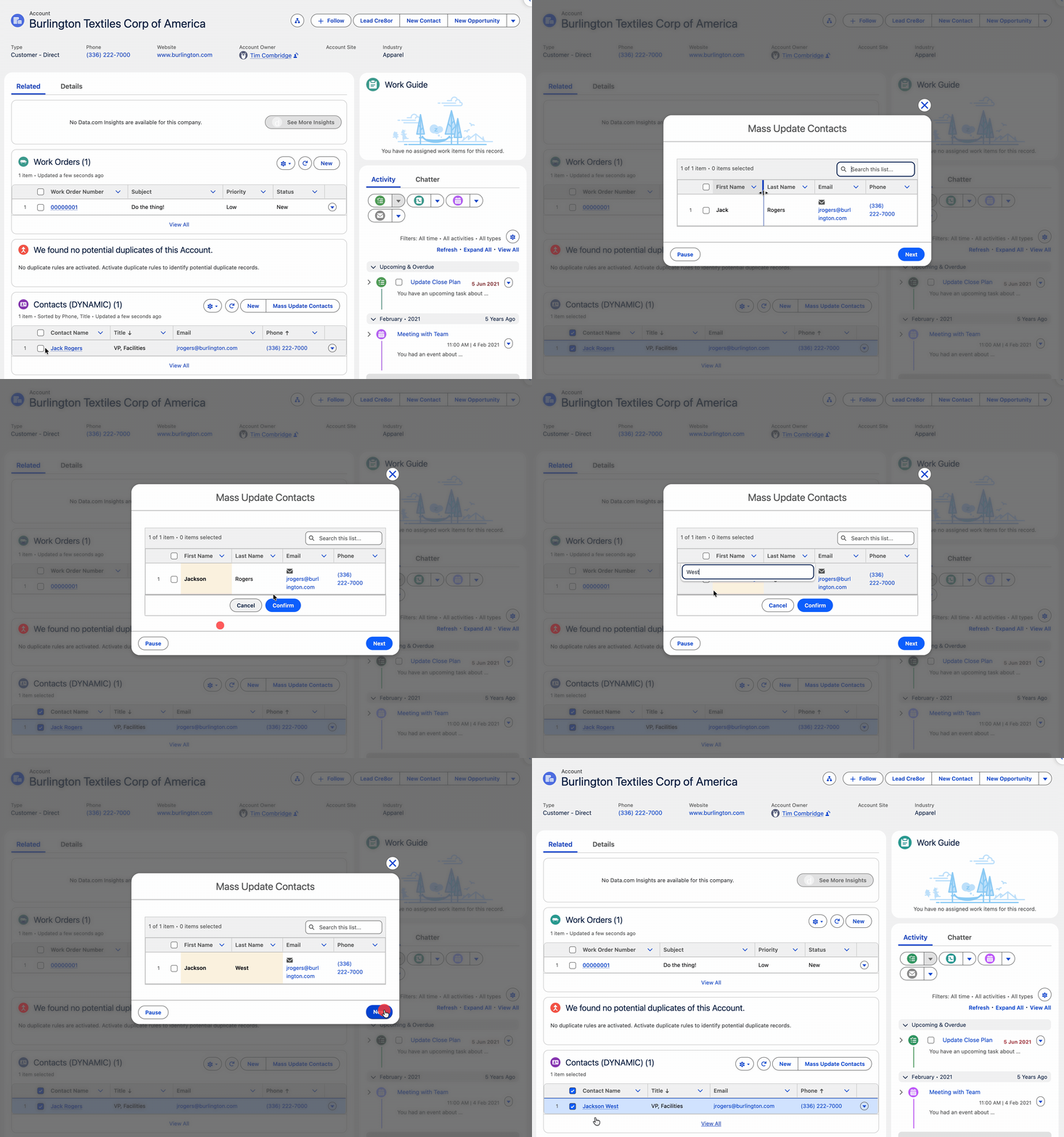
Now the good news. You can tick many records in a List View or a Related List. Then you click a button. A pop-up window opens with a Screen Flow inside it. The flow gets all your ticked records and can work on them together.

It sounds like a small change. But it opens up Screen Flow for your users in a whole new way.

How to set it up

The set-up is simple, but it is not very easy to guess. So let’s go slowly.

We will build a small Screen Flow that gets some Contacts and lets users fix their details. Then we will add it to a List View and to a Related List.

Part 1: Build the Screen Flow

  • Step 1. Open Flow Builder and make a new Screen Flow.
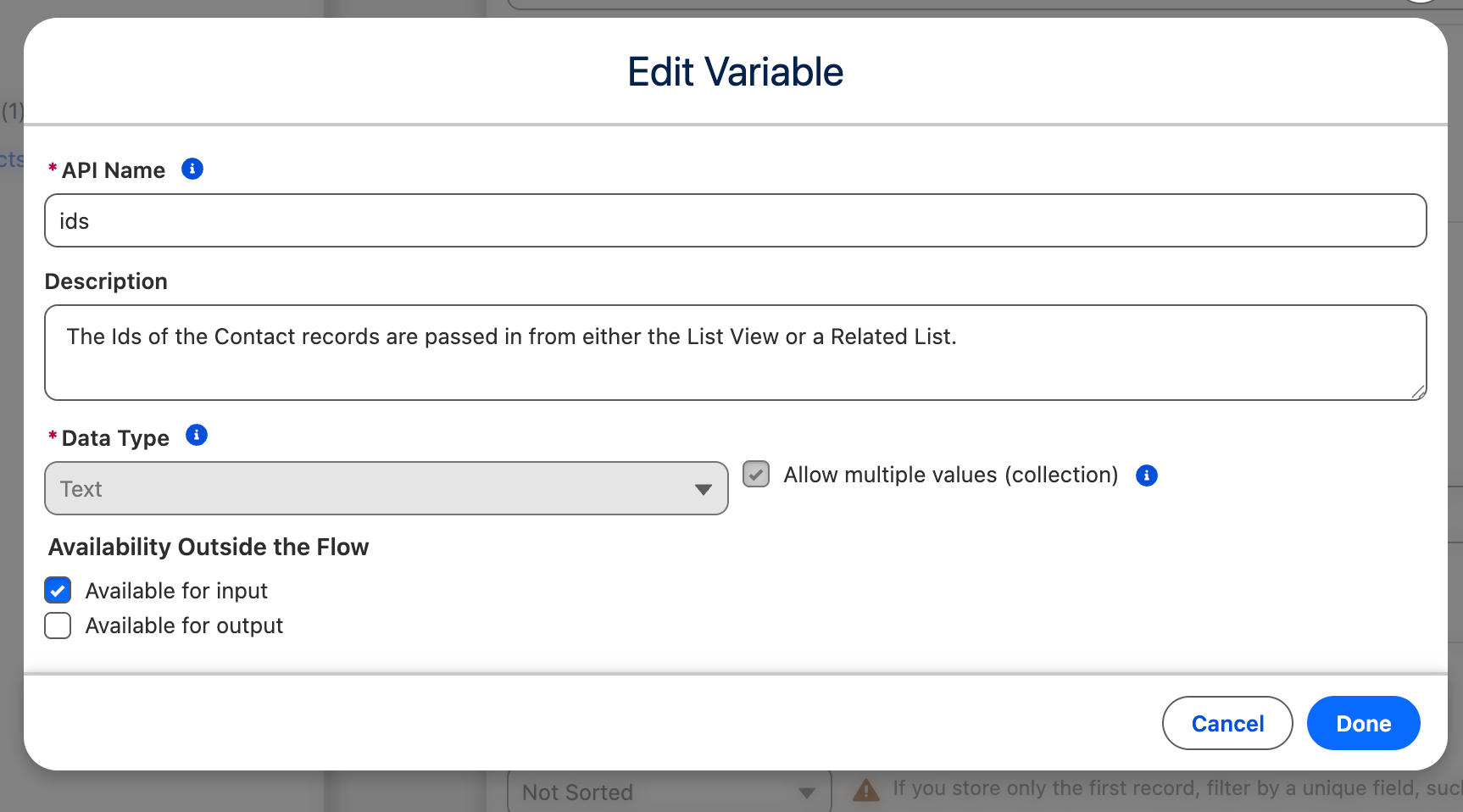
  • Step 2. Make a new variable called ids. Follow these rules:
    • The name must be ids, in small letters
    • Type: Text
    • Turn on Allow multiple values
    • Turn on Available for input

1

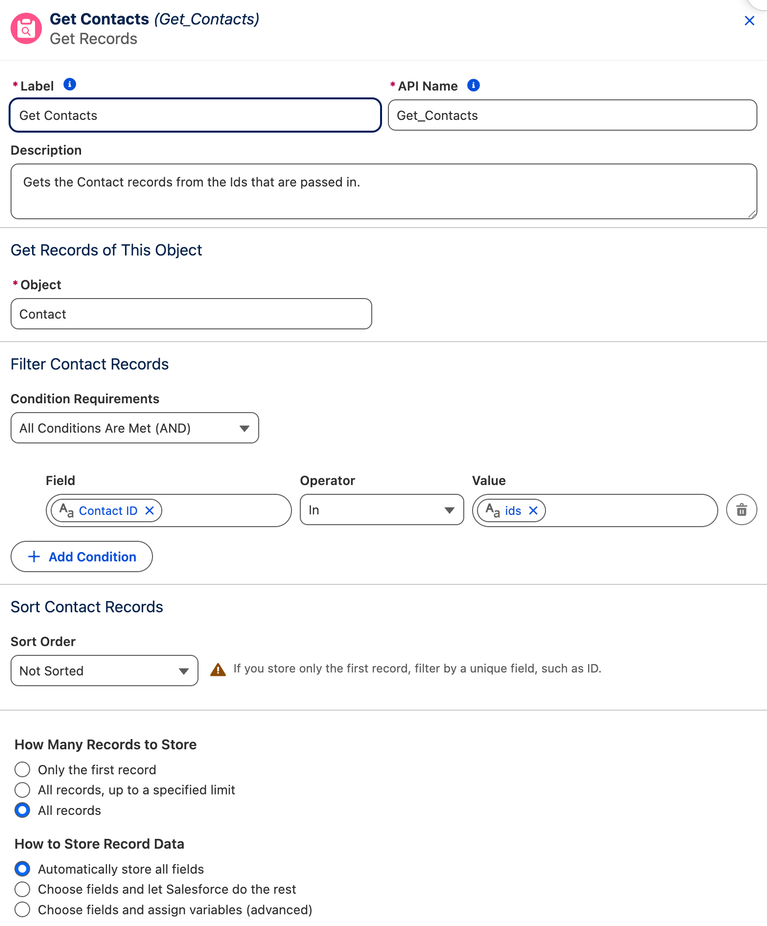
  • Step 3. Add a Get Records element. It finds the Contacts that match those IDs.

2

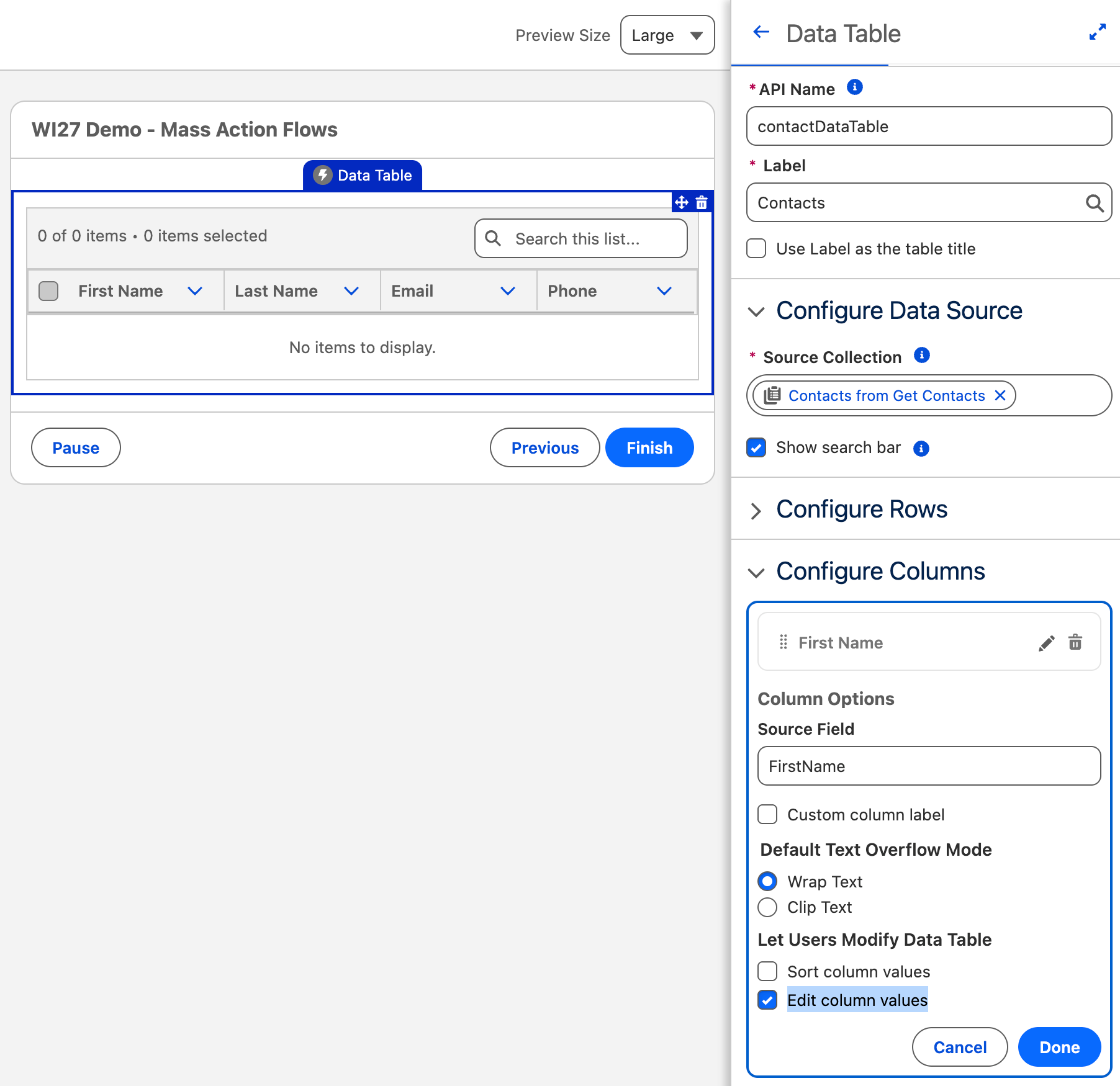
  • Step 4. Add a Screen. Put a Data Table on it. Add these columns: First Name, Last Name, Email and Phone. Make all of them editable.

3

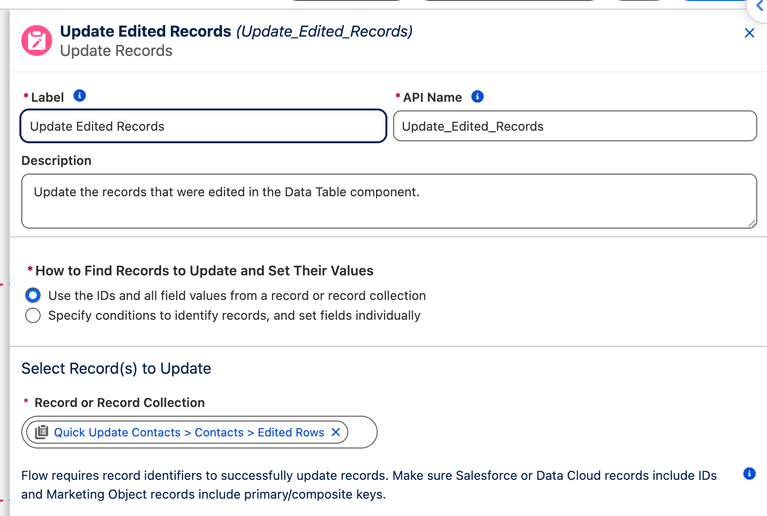
  • Step 5. Add an Update Records element. It saves the changes the user made in the table.

4

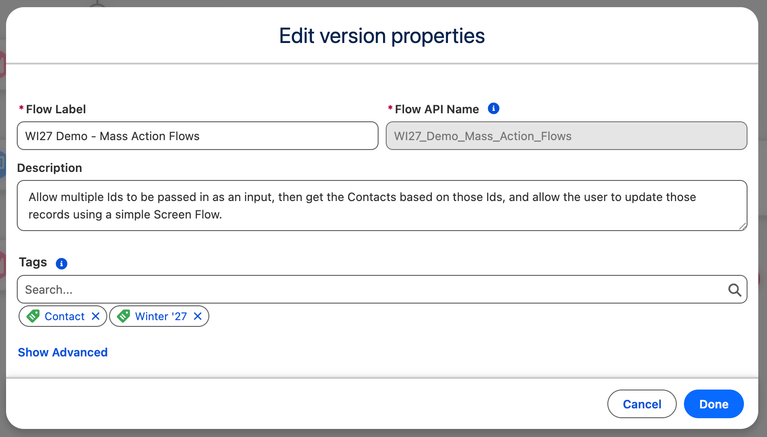
  • Step 6. Save the flow and give it a clear name. A tag can help you find it later. We named ours “Mass Action Demo Flow.

5

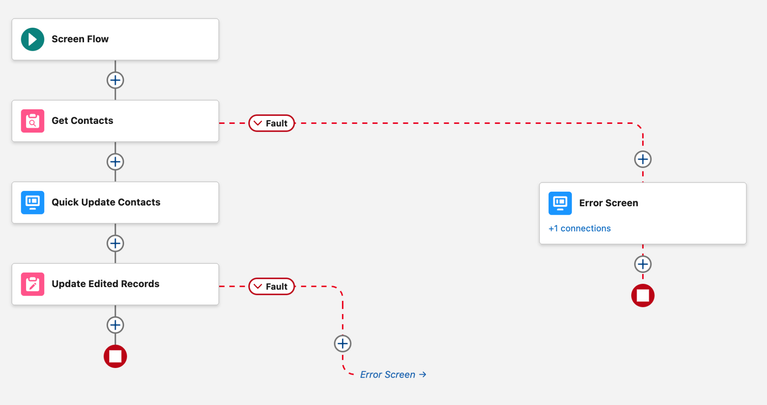
  • Step 7. Add a way to handle errors. Put a fault path on each pink element. A fault path is a “Plan B” for when something goes wrong.

6

  • Step 8. Save again. Test the flow. Then activate it.

Part 2: Add it to a List View

  • Step 1. Go to Setup, then Object Manager, then Contact.
  • Step 2. Open Buttons, Links, and Actions and click New Action.
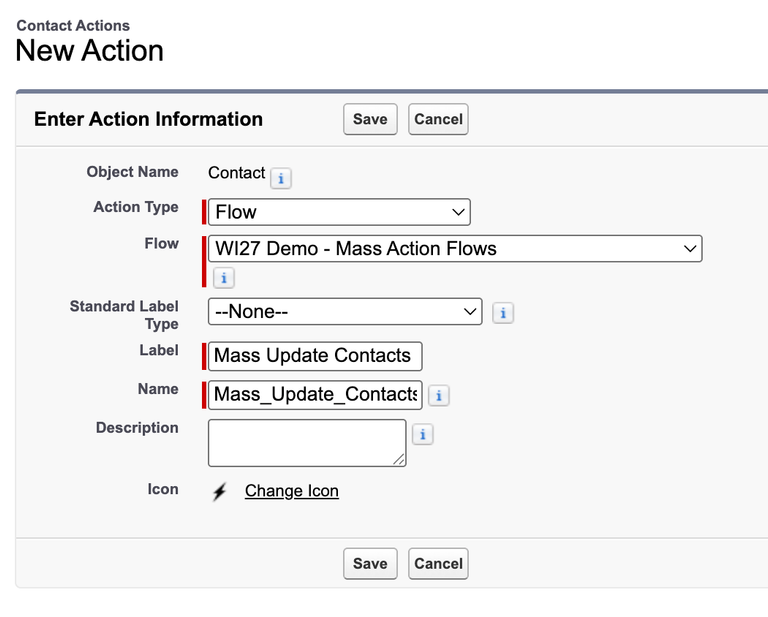
  • Step 3. Set Action Type to Flow. Pick the flow you built. Fill in the other boxes the way you like.

20

  • Step 1. Go to Setup, then Object Manager, then Contact.
  • Step 2. Open Buttons, Links, and Actions and click New Action.
  • Step 3. Set Action Type to Flow. Pick the flow you built. Fill in the other boxes the way you like.

8

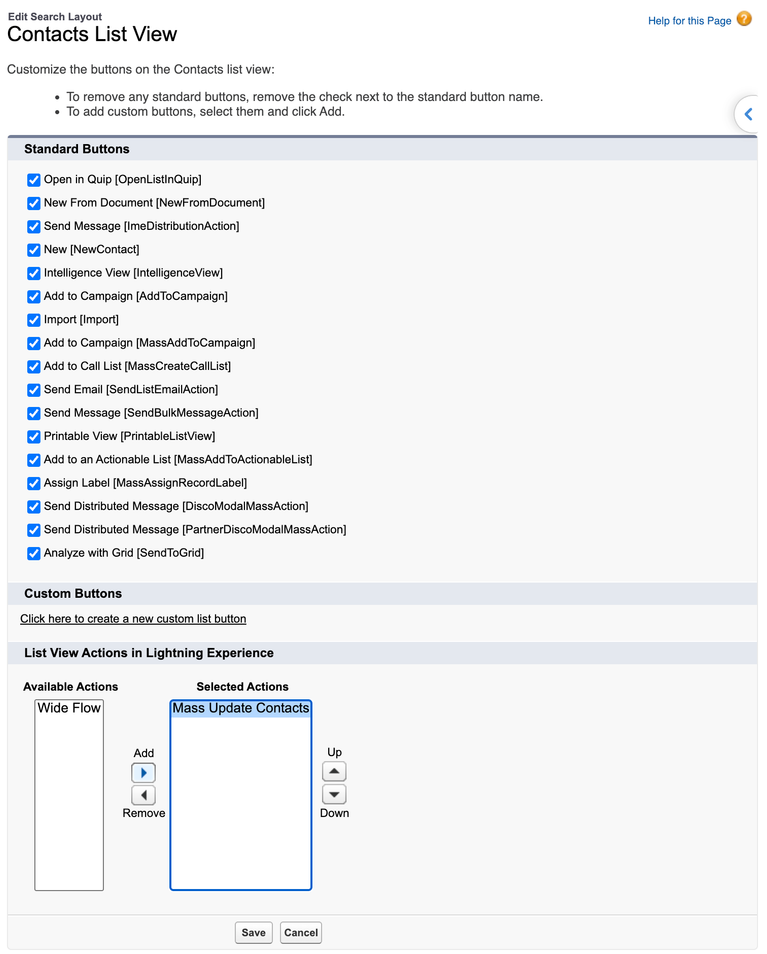
  • Step 4. Open the List View Button Layout tab and click Edit.
  • Step 5. Scroll down to List View Actions in Lightning Experience. Add your new action there. Save.

21

Time to test. Open the Contacts tab. Pick a List View. Tick a few records. Click your new button.
10

Part 3: Add it to a Related List

Now let’s add the same flow to the Contacts list on an Account page.

  • Step 4. Open the List View Button Layout tab and click Edit.

11

  • Step 2. Open the Lightning Record Pages tab and edit the Account page you use. If you don’t have one ready, open any Account record, click the gear icon, and choose Edit Page.
  • Step 3. Add a Dynamic Related List – Single component. Set it to show Contacts.
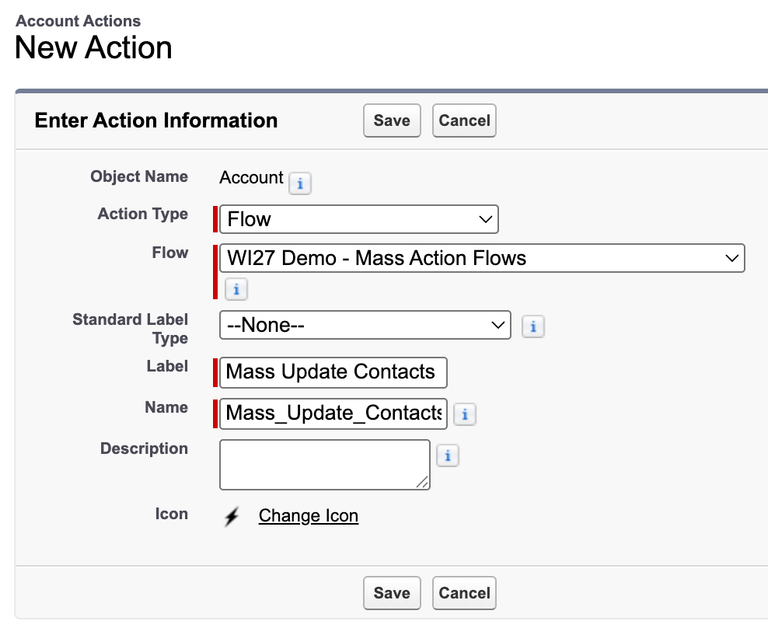
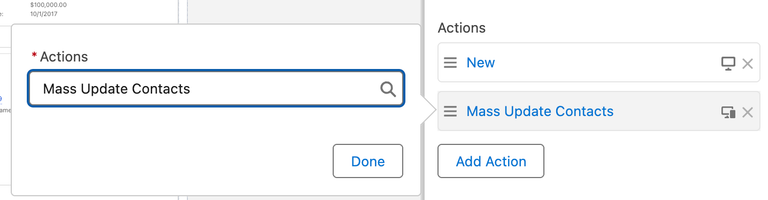
  • Step 4. In the settings on the right, find Actions. Add your new action.

12

Ways to use it

Salesforce Flow is very flexible, so the ideas are almost endless. Here are some good ones.

  • Give many records to a new owner. Say a sales person leaves. Their records need new owners. With this feature, you can pick all of them and open one screen. You can choose the new owner for each record, or for all of them together. You can also add a short note, like a mini handover.
  • Move students up a class. A friend of the writer once built a special page for a school charity. It moved student records to the next class at the end of the year. It took a lot of work back then. This new feature would be a great fit for that job today.
  • Update many deals together. A busy sales team can update all the deals they worked on during the day in one go. They can add notes to many deals at once, too.
  • Clean up messy data. Fix wrong phone numbers or empty emails for many records on one screen, like a spreadsheet.

If you do a job again and again on many records, this feature might be perfect.

Things to keep in mind

Salesforce Flow is very flexible, so the ideas are almost endless. Here are some good ones.

  • The variable must be called `ids`. It must be a text collection that is open for input. If not, it will not work.
  • Think about other automations. Your flow may wake up other flows or rules when it changes records. Test carefully.
  • Watch the governor limits. These are Salesforce’s rules about how much work can be done at once.
  • It works only in Lightning Experience. If your team is still on Salesforce Classic, it is a great time to move.
  • Test with a normal user. Check that people have the right access to the records and fields.

Summary

Winter ’27 was so big that this feature may have slipped past you. But now you know how strong it is. You can feed many records into a Screen Flow very easily.

You pick the records. You click one button. You fix everything on one screen. That saves time, and it makes work less boring.

Do you already have a good idea for it? Tell us in the comments, or share this blog on LinkedIn and tell us how you plan to use it. We would love to hear it!

Also Read

How useful was this post?

Click on a star to rate it!

Average rating 0 / 5. Vote count: 0

No votes so far! Be the first to rate this post.

Written by

Mohit Bansal

Salesforce Technical Architect | Lead | Salesforce Lightning & Integrations Expert | Pardot | 5X Salesforce Certified | App Publisher | Blogger

Get the latest tips, news, updates, advice, inspiration, and more….

Contributor of the month
contributor
Priya

Salesforce Technical Architect - Lightning (Aura & LWC) Specialist

...
Categories
...
Boost Your Brand's Visibility

Want to promote your products/services in front of more customers?

...

Leave a Reply

Your email address will not be published. Required fields are marked *